> ## Documentation Index
> Fetch the complete documentation index at: https://docs.skylit.ai/llms.txt
> Use this file to discover all available pages before exploring further.
# Drawing Presets
> Save your drawing styles as named presets that sync across devices — Fibonacci level sets, line styles, and defaults for every new drawing.
Drawing presets let you save a drawing's full configuration under a name and reuse it anywhere. Set up your Fibonacci levels once — ratios, colors, fills, line style, extensions — save it as a preset, and every device signed into your Skylit account can apply it with one click.
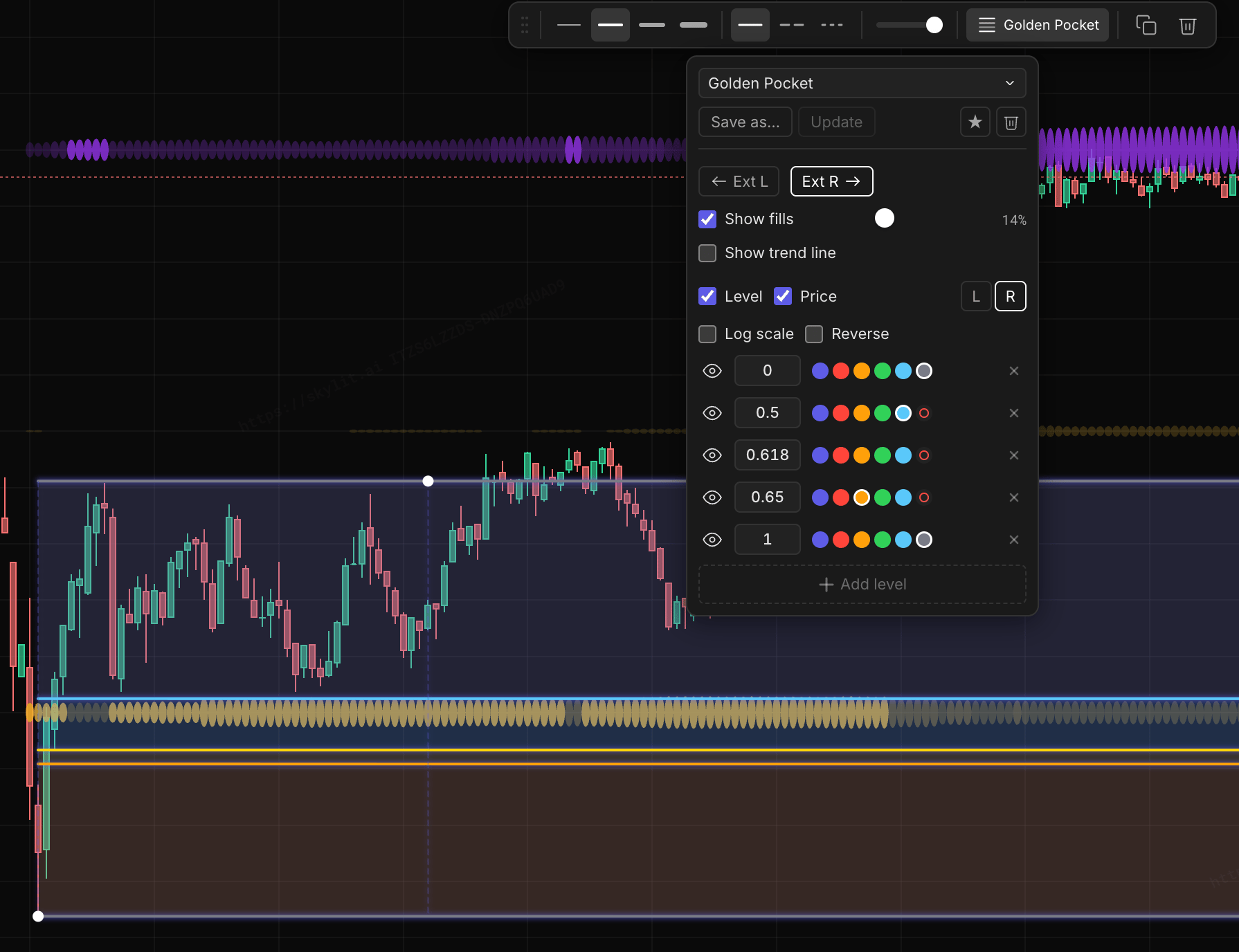 Presets exist for two families of tools:
| Preset type | Tools covered | What gets saved |
| ----------- | ---------------------------------------------------------------------------------- | ------------------------------------------------------------------------------------------------------------------------------------------------------ |
| Fibonacci | Fib retracement | Level ratios, per-level colors and visibility, fills and fill opacity, line width and style, extensions, trend line, label options, log scale, reverse |
| Line style | Trendline, rectangle, arrow, horizontal line, horizontal ray, vertical line, brush | Color, line width, line style, opacity |
Presets exist for two families of tools:
| Preset type | Tools covered | What gets saved |
| ----------- | ---------------------------------------------------------------------------------- | ------------------------------------------------------------------------------------------------------------------------------------------------------ |
| Fibonacci | Fib retracement | Level ratios, per-level colors and visibility, fills and fill opacity, line width and style, extensions, trend line, label options, log scale, reverse |
| Line style | Trendline, rectangle, arrow, horizontal line, horizontal ray, vertical line, brush | Color, line width, line style, opacity |
 ## Where to find presets
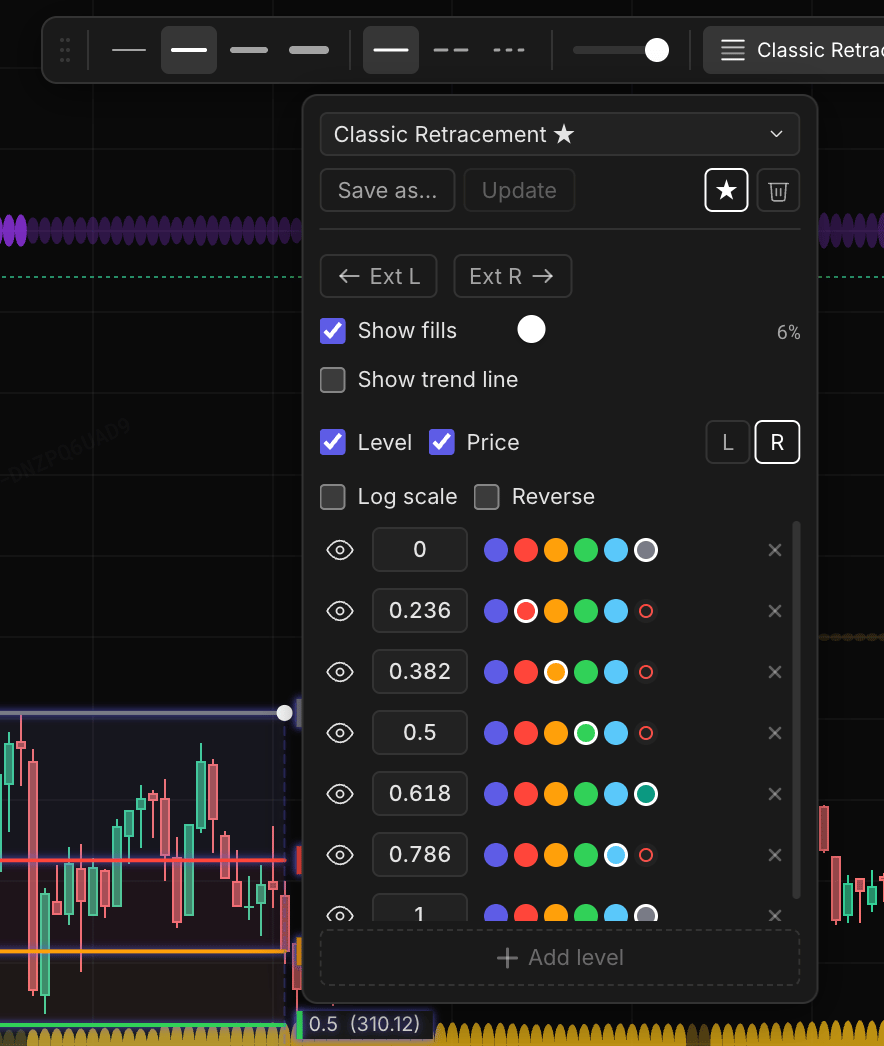
Select any drawing on the chart and its style toolbar appears.
* **Fibonacci drawing selected** — the Fibonacci button on the toolbar shows the active preset's name next to the icon. Click it to open the Fibonacci panel; the preset controls sit at the top, above the level editor.
* **Line-style drawing selected** — the Line style button works the same way: it carries the active preset's name and opens a compact preset panel.
Presets are saved to your Skylit account — they belong to you, not to any single chart or layout, and follow you across every device you sign into.
## The preset controls
| Control | What it does |
| --------------- | ---------------------------------------------------------------------------------------------------------------------------------------------------------------- |
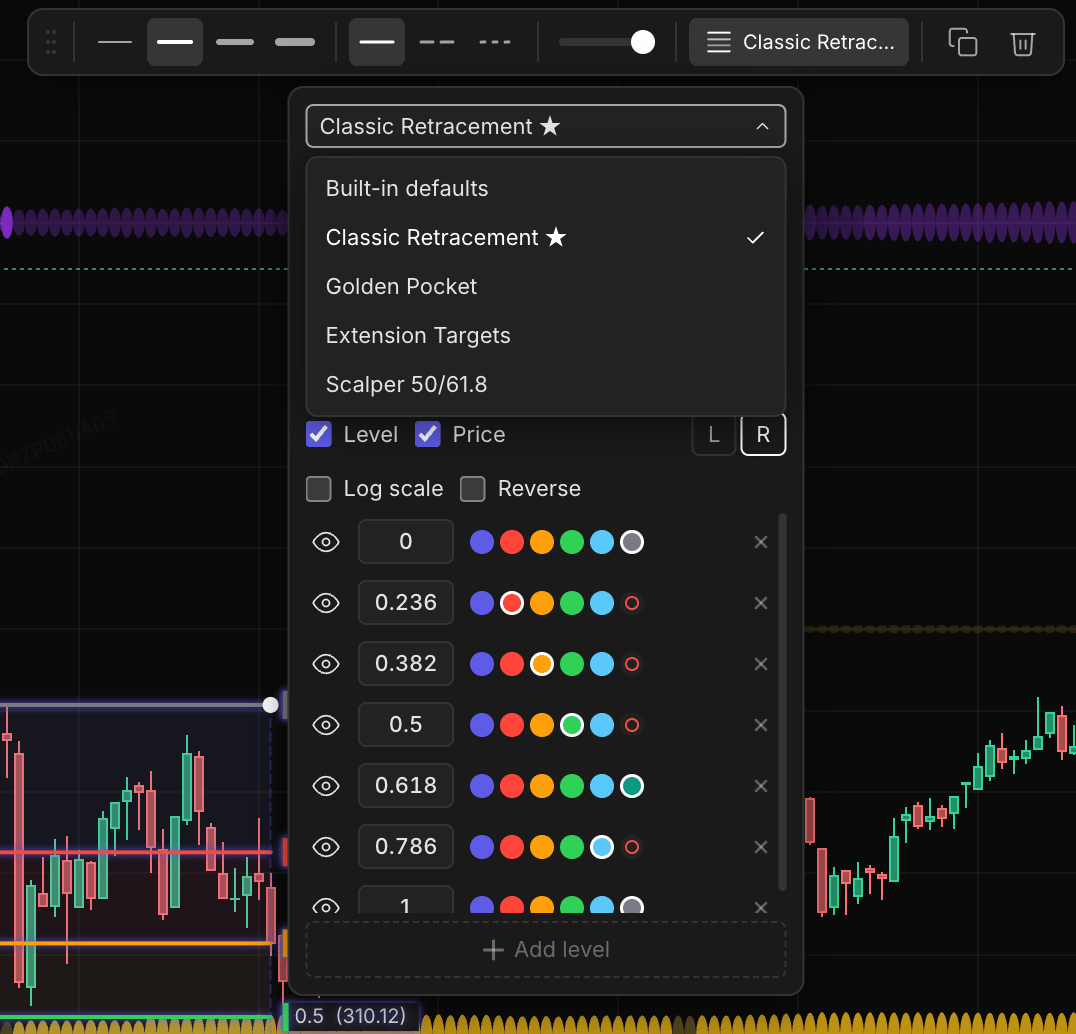
| Preset dropdown | Applies the chosen preset to the selected drawing and makes it your active preset. Choose **Built-in defaults** to reset the drawing to the stock configuration. |
| Save as… | Saves the selected drawing's current configuration as a new named preset and makes it active. |
| Update | Overwrites the active preset with the drawing's current configuration. Enabled only when the drawing actually differs from the preset. |
| Star | Marks the preset as the default for new drawings. Click again to unstar. |
| Delete | Removes the preset from your account. |
## Where to find presets
Select any drawing on the chart and its style toolbar appears.
* **Fibonacci drawing selected** — the Fibonacci button on the toolbar shows the active preset's name next to the icon. Click it to open the Fibonacci panel; the preset controls sit at the top, above the level editor.
* **Line-style drawing selected** — the Line style button works the same way: it carries the active preset's name and opens a compact preset panel.
Presets are saved to your Skylit account — they belong to you, not to any single chart or layout, and follow you across every device you sign into.
## The preset controls
| Control | What it does |
| --------------- | ---------------------------------------------------------------------------------------------------------------------------------------------------------------- |
| Preset dropdown | Applies the chosen preset to the selected drawing and makes it your active preset. Choose **Built-in defaults** to reset the drawing to the stock configuration. |
| Save as… | Saves the selected drawing's current configuration as a new named preset and makes it active. |
| Update | Overwrites the active preset with the drawing's current configuration. Enabled only when the drawing actually differs from the preset. |
| Star | Marks the preset as the default for new drawings. Click again to unstar. |
| Delete | Removes the preset from your account. |
 ## The unsaved-changes dot
When your selected drawing drifts from its preset — a level ratio edited, a different line width, an extension toggled — a dot appears next to the preset name on the toolbar button, and **Update** lights up in the panel.
## The unsaved-changes dot
When your selected drawing drifts from its preset — a level ratio edited, a different line width, an extension toggled — a dot appears next to the preset name on the toolbar button, and **Update** lights up in the panel.
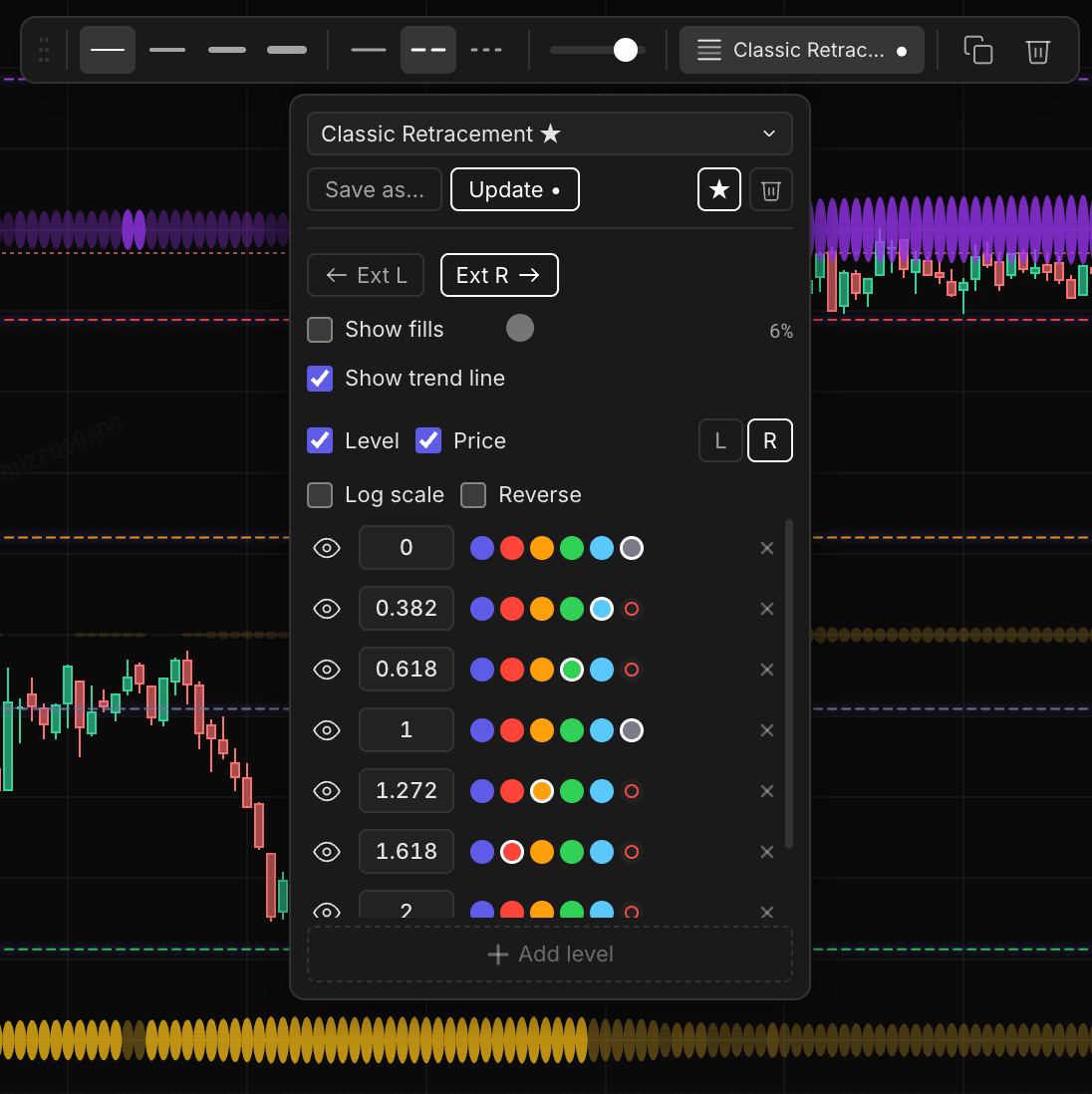 * **Dot visible** — the drawing no longer matches the preset. Click **Update** to save the changes into the preset, or re-apply the preset from the dropdown to discard them.
* **No dot, Update disabled** — the drawing matches the preset exactly. Nothing to save.
Update's disabled state doubles as a saved indicator: if you can't click it, your preset already reflects what's on the chart.
Edits never save into a preset automatically. Changing a drawing changes that drawing only — other drawings using the same preset keep their look, and the preset itself changes only when you click **Update**.
## Defaults for new drawings
Every new drawing starts from the first match in this order:
1. **Active preset** — whatever is currently selected in the preset dropdown.
2. **Starred preset** — your starred default, used whenever no preset is active.
3. **Built-in defaults** — the stock configuration.
Star the preset you want as your house style, and new Fibonacci or line drawings come out styled without any setup — even after choosing **Built-in defaults** for a one-off drawing.
## Applying a preset
Applying a preset makes the selected drawing match it exactly — every setting the preset covers is restored, including settings you changed since. Right after applying, the drawing is in sync with the preset and Update is disabled.
Applying a preset restyles the selected drawing only. Drawings already on your charts keep their own configuration — select one and re-apply the preset if you want it updated too.
## A note on Fibonacci colors
Fibonacci drawings color each level individually — those per-level colors live in the preset. The general drawing color swatch does not apply to Fibonacci drawings, which is why the color picker is not shown on the toolbar while a Fibonacci drawing is selected. For line-style presets, color is part of the preset.
## Sync and limits
* Presets sync across all devices signed into the same Skylit account. A preset saved on desktop is available on mobile immediately.
* If the same account edits presets on two devices at once, the most recent save wins.
* Accounts can store up to 50 presets across both preset types.
* **Dot visible** — the drawing no longer matches the preset. Click **Update** to save the changes into the preset, or re-apply the preset from the dropdown to discard them.
* **No dot, Update disabled** — the drawing matches the preset exactly. Nothing to save.
Update's disabled state doubles as a saved indicator: if you can't click it, your preset already reflects what's on the chart.
Edits never save into a preset automatically. Changing a drawing changes that drawing only — other drawings using the same preset keep their look, and the preset itself changes only when you click **Update**.
## Defaults for new drawings
Every new drawing starts from the first match in this order:
1. **Active preset** — whatever is currently selected in the preset dropdown.
2. **Starred preset** — your starred default, used whenever no preset is active.
3. **Built-in defaults** — the stock configuration.
Star the preset you want as your house style, and new Fibonacci or line drawings come out styled without any setup — even after choosing **Built-in defaults** for a one-off drawing.
## Applying a preset
Applying a preset makes the selected drawing match it exactly — every setting the preset covers is restored, including settings you changed since. Right after applying, the drawing is in sync with the preset and Update is disabled.
Applying a preset restyles the selected drawing only. Drawings already on your charts keep their own configuration — select one and re-apply the preset if you want it updated too.
## A note on Fibonacci colors
Fibonacci drawings color each level individually — those per-level colors live in the preset. The general drawing color swatch does not apply to Fibonacci drawings, which is why the color picker is not shown on the toolbar while a Fibonacci drawing is selected. For line-style presets, color is part of the preset.
## Sync and limits
* Presets sync across all devices signed into the same Skylit account. A preset saved on desktop is available on mobile immediately.
* If the same account edits presets on two devices at once, the most recent save wins.
* Accounts can store up to 50 presets across both preset types.