

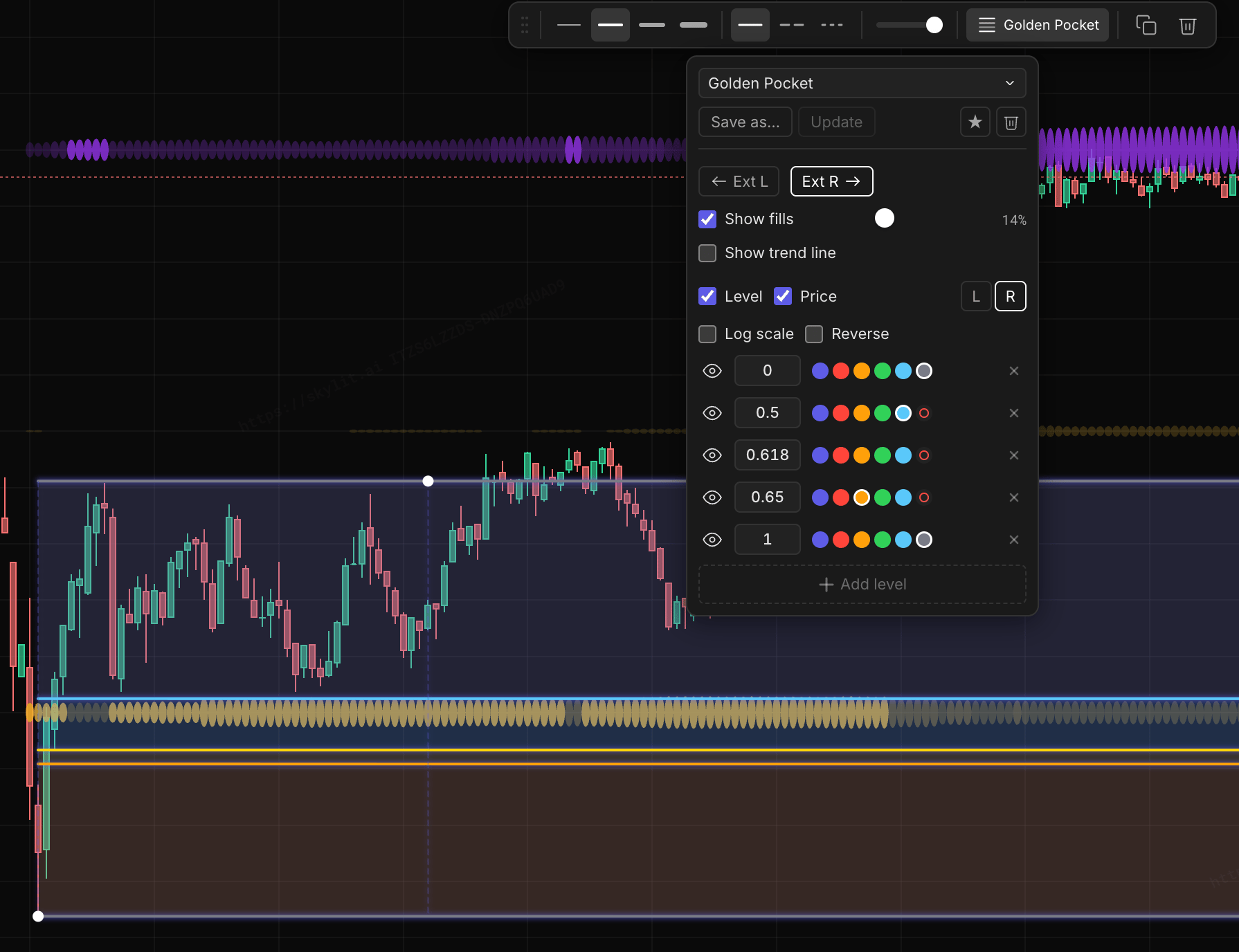
Where to find presets
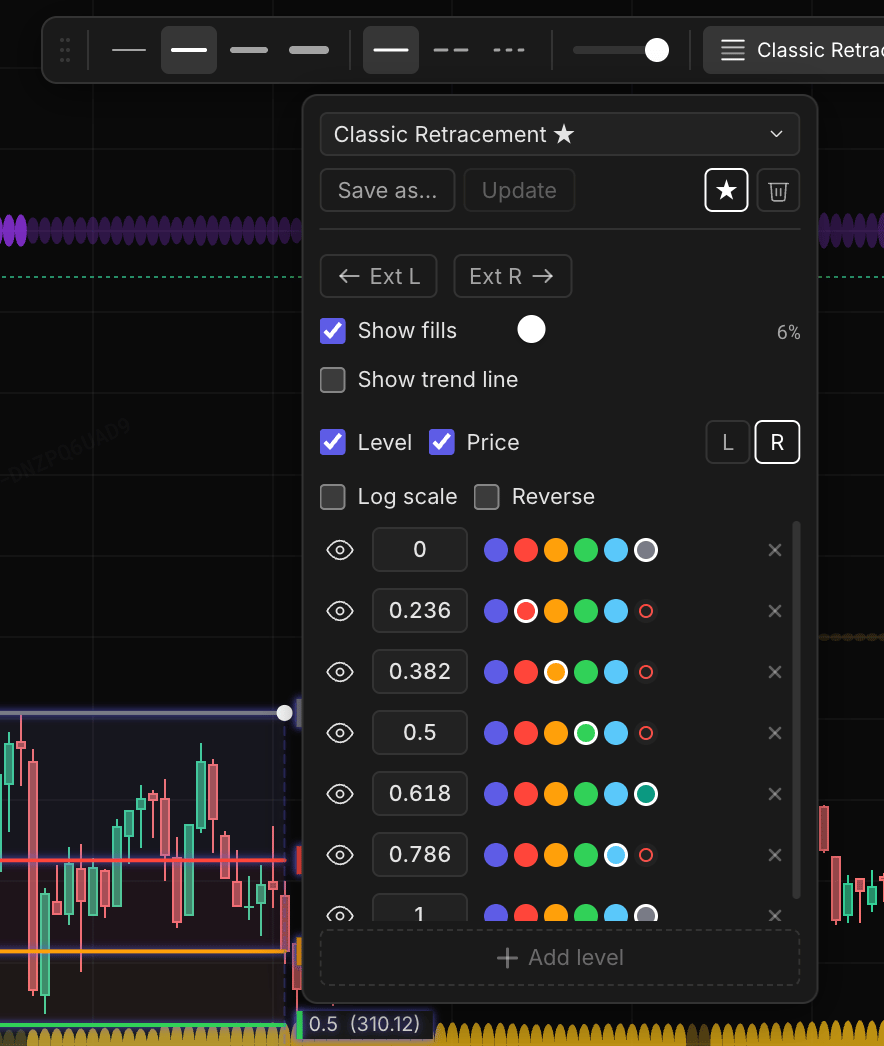
Select any drawing on the chart and its style toolbar appears.- Fibonacci drawing selected — the Fibonacci button on the toolbar shows the active preset’s name next to the icon. Click it to open the Fibonacci panel; the preset controls sit at the top, above the level editor.
- Line-style drawing selected — the Line style button works the same way: it carries the active preset’s name and opens a compact preset panel.
Presets are saved to your Skylit account — they belong to you, not to any single chart or layout, and follow you across every device you sign into.
The preset controls
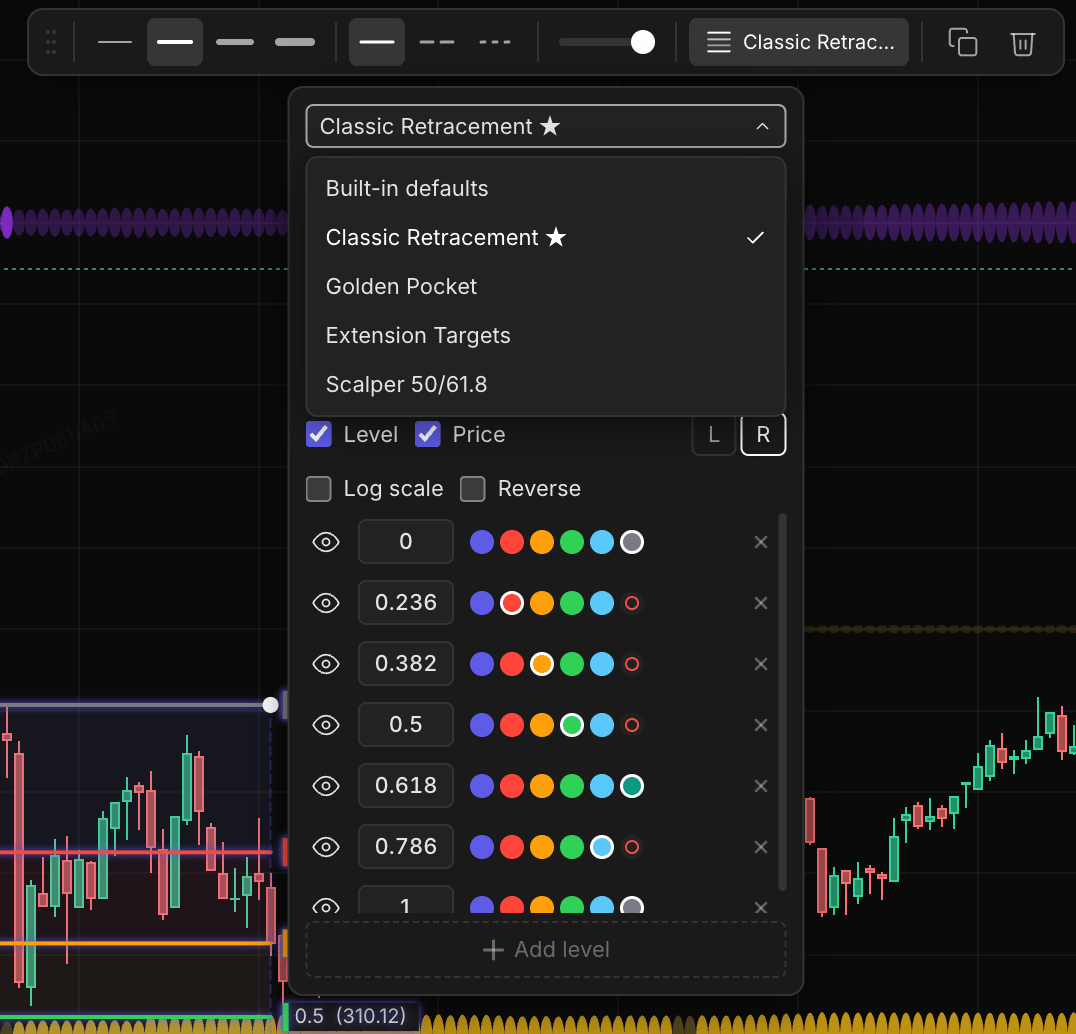
The unsaved-changes dot
When your selected drawing drifts from its preset — a level ratio edited, a different line width, an extension toggled — a dot appears next to the preset name on the toolbar button, and Update lights up in the panel.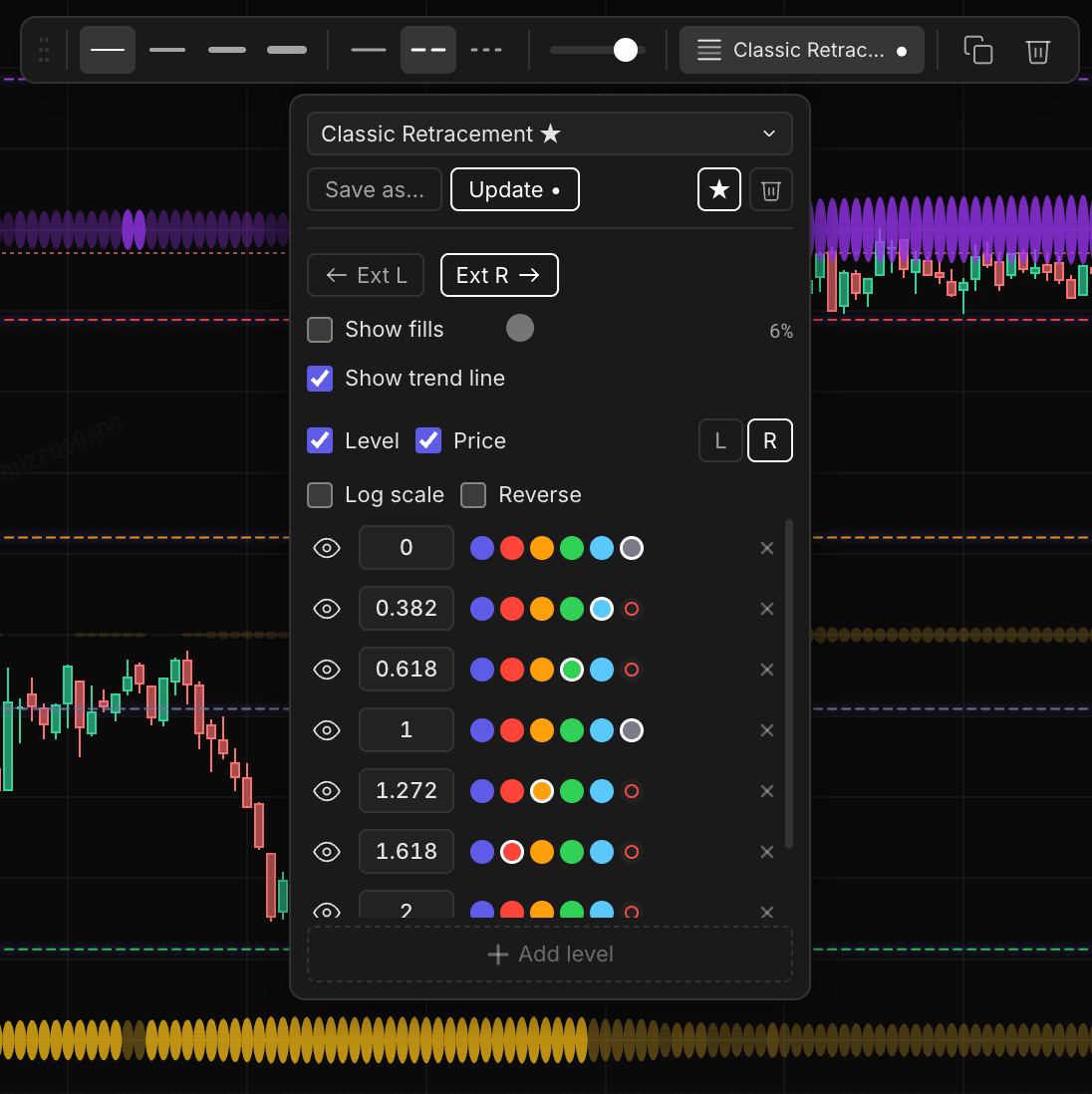
- Dot visible — the drawing no longer matches the preset. Click Update to save the changes into the preset, or re-apply the preset from the dropdown to discard them.
- No dot, Update disabled — the drawing matches the preset exactly. Nothing to save.
Defaults for new drawings
Every new drawing starts from the first match in this order:- Starred preset — the preset you’ve marked with the Star control. It’s your house-style default and always wins, so new drawings come out styled no matter what’s selected in the dropdown.
- Active preset — whatever is currently selected in the preset dropdown, used only when no preset is starred.
- Built-in defaults — the stock configuration.
Applying a preset
Applying a preset makes the selected drawing match it exactly — every setting the preset covers is restored, including settings you changed since. Right after applying, the drawing is in sync with the preset and Update is disabled.A note on Fibonacci colors
Fibonacci drawings color each level individually — those per-level colors live in the preset. The general drawing color swatch does not apply to Fibonacci drawings, which is why the color picker is not shown on the toolbar while a Fibonacci drawing is selected. For line-style presets, color is part of the preset.Sync and limits
- Presets sync across all devices signed into the same Skylit account. A preset saved on desktop is available on mobile immediately.
- If the same account edits presets on two devices at once, the most recent save wins.
- Accounts can store up to 50 presets across both preset types.