



Educational material, not financial advice. Nothing here is a recommendation to buy or sell any security. Options involve significant risk and are not suitable for every investor. Past behavior of any reading or setup does not guarantee future results.
Why it matters
Big options orders show you where other traders are putting real money. Flowseeker lets you watch that money as it trades. Two words come up everywhere in this guide. A print is one reported trade. Flow is the stream of those prints. Every page answers one question: who is putting money into which options right now, and does it look like a new position? You can look at flow at three levels:Where to find it
Flowseeker has its own section in the left sidebar: Live Feed, Dark Feed, Flow Scanner, Flow Compass, Contract Lookup, Company Events, Flow Tracker, Flow Alerts. Settings also appears if your account has Discord or API access. On a phone, the same pages sit in the Flowseeker bar: Live Feed, Dark Feed, Flow, Compass, Lookup, Events, Tracker, Alerts. Flowseeker is included in the Community, Initiate and Pro plans. The first time you open it, you are asked to sign the OPRA market-data agreement. OPRA is the body that publishes US options trades. Nothing loads until you sign, and you only sign once.Read it in 30 seconds
The readings, and the question each answers
In plain English. Every option has a bid (what buyers offer) and an ask (what sellers want). Paying the ask means someone was in a hurry to buy; hitting the bid means someone was in a hurry to sell. That is all side tells you. A hedge, a close and one leg of a spread can all print at the ask.
In plain English. Volume counts contracts that changed hands today. Open interest counts contracts that were still open at last night’s close. If 5,000 contracts trade in a strike that had 800 open, more changed hands today than existed yesterday. That can be new positions, or the same contracts traded back and forth. The next morning’s open interest (Delta OI) tells you which.
Read one print in six steps
- Single-leg or multi-leg? If it has a multi-leg or cross flag, open it before you read direction. A big call buy is often one leg of a spread.
- Where did it fill? Ask or above ask leans bought; bid or below bid leans sold. Mid tells you little.
- Size against open interest. Size > OI or high Vol/OI on the ask side is the strongest hint of a new position. Tomorrow’s Delta OI confirms or retracts it.
- Premium for this name. $500K is routine on SPY and large on a small cap.
- Expiry and strike. Short-dated, out-of-the-money size is a bet on a move soon. Long-dated or in-the-money size is more often a hedge or stock replacement.
- Then look at the chart. Click the row to open the contract, or open the ticker on Atlas, to see where the print sits against price and Heatseeker levels.
Rule of thumb. A print is a clue, not a thesis. Look for two or three clues that agree (side, size vs OI, repetition, a level) before you call it positioning.
How to use it
Not sure where to start? Many traders pick a page by trading style. Each page named here is explained further down.Live Feed
Why it matters: this is the tape. Every row is one trade, so you see big orders the moment they print. Where: Flowseeker > Live Feed.- Check the status pill. LIVE means it is streaming. PAUSED means you are viewing history or paused it. CONNECTING or OFFLINE means the stream dropped.
- Open Filters to narrow the tape. Good first filters are ticker, Type (calls or puts), Side, Days to Expiry and Premium. To exclude a ticker, type
!TICKER.- The panel also has Flow Score range, Equity Type (stocks, ETFs, indices), Trade Date, Expiry Date, Open Interest, Volume, Vol/OI Ratio, Size and % OTM.
- And more: stock, strike and contract price, Days to Earnings, IV % and IV Inflation, the contract’s Ask %, Bid % and Skew %, and sector and industry.
- Flip the quick toggles you need: Volume > OI, Size > OI, Exclude Deep ITM, OTM Only, Multi-Leg Only, Single-Leg Only, Sweeps Only, Crosses Only.
- Open Columns to show, hide and reorder columns. The choices are Date/Time, Ticker, Strike, C/P, OTM, Exp, DTE, Fill, Spread, Side, Flow Score, Contract Ratio, Size, Prem, Vol, OI, ΔOI, Spot, IV, V/OI, Strategy and Earnings.
- Turn on Flow Highlighting at the foot of the Columns panel. It colours rows whose volume or size is above open interest, in colours you pick. Prints big enough to be new positions then stand out while the feed scrolls.
- Save the setup as a tab. Each feed tab keeps its own filters, columns, sort and highlighting. Use Add new feed tab, Rename and Duplicate to keep setups side by side, for example “0DTE SPY” or “Earnings week”.
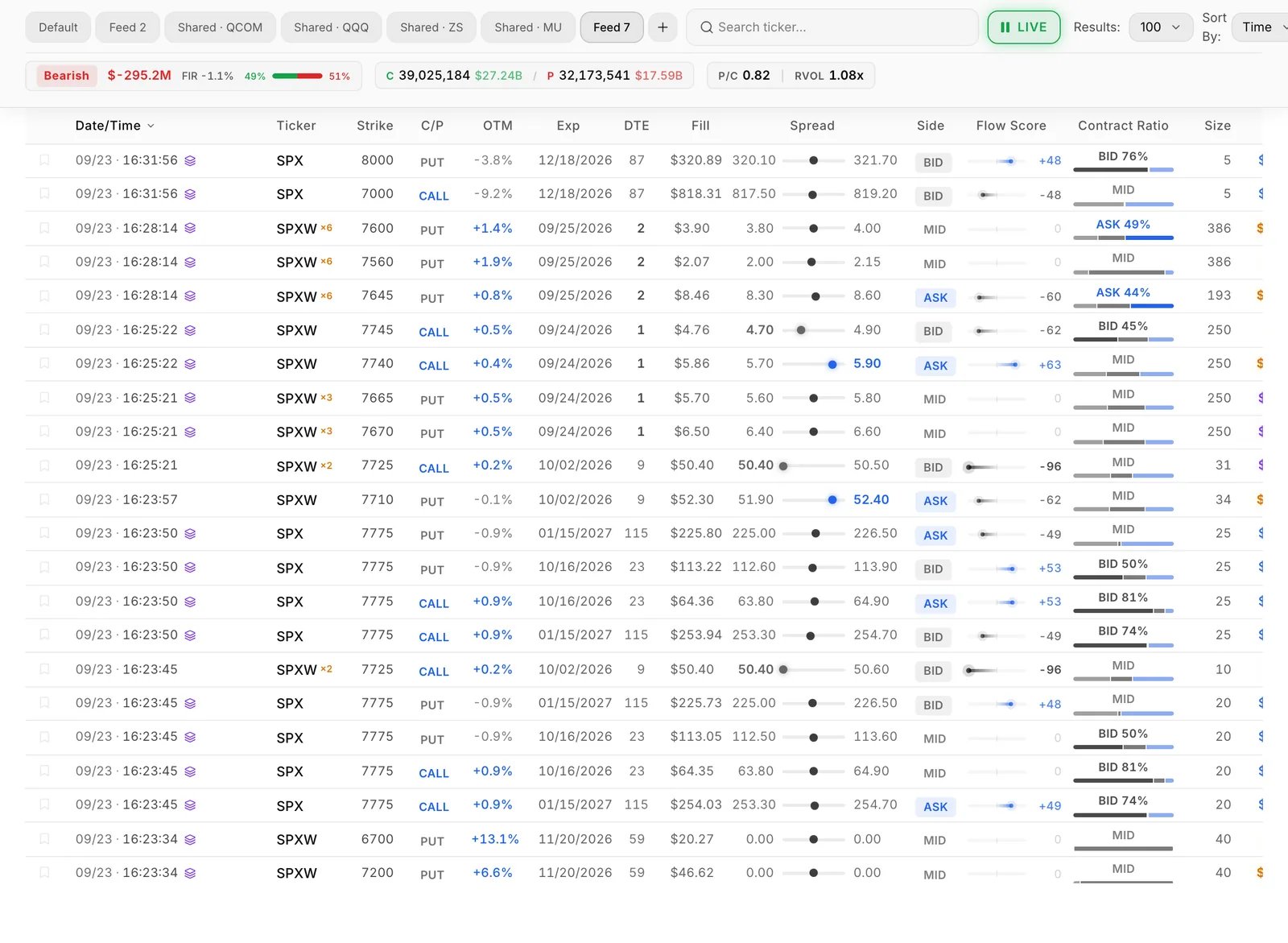
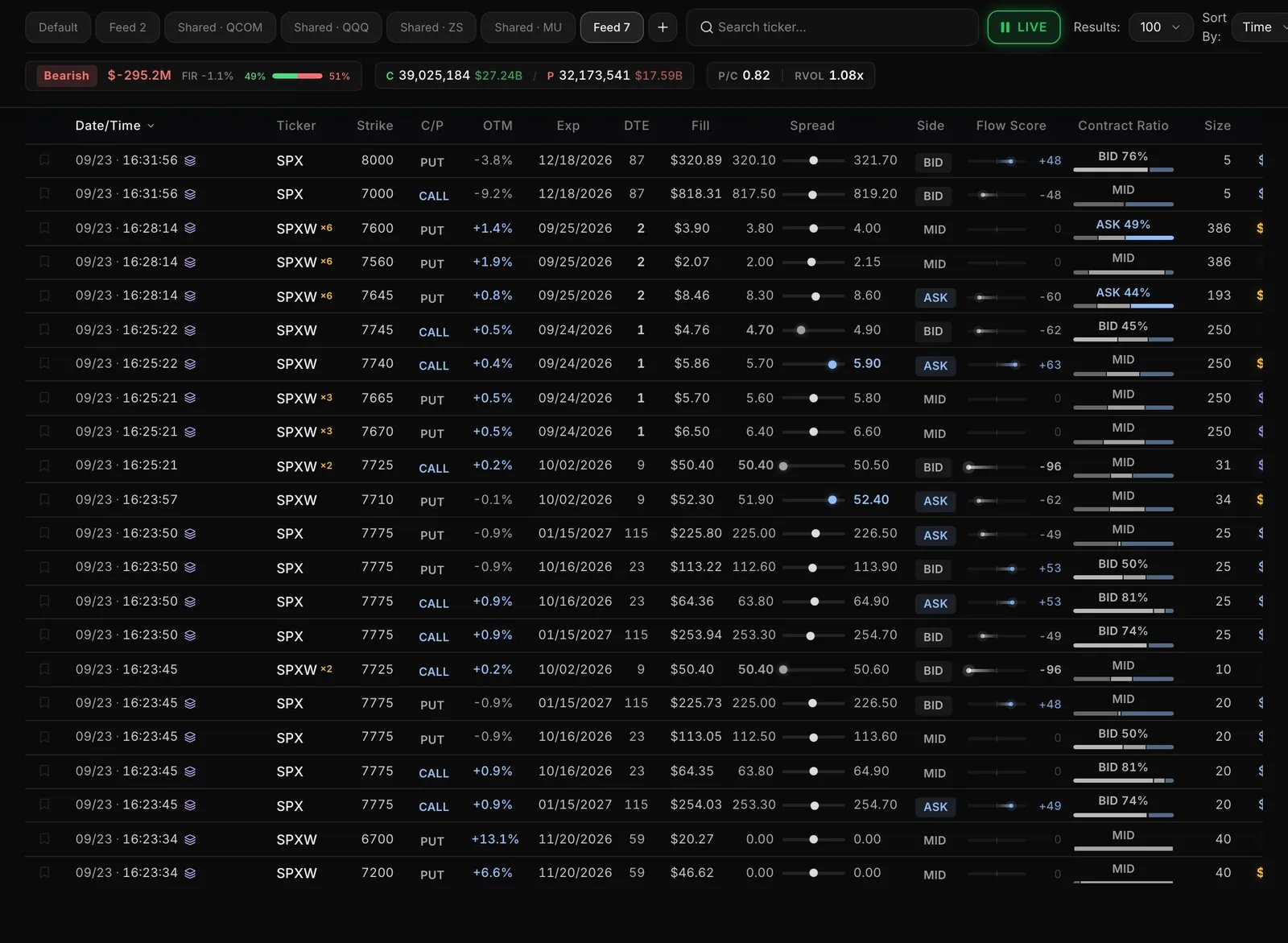
- Click it to open the Contract Drilldown.
- Right-click it to Track trade, or right-click a filterable cell (such as Ticker or Side) to Show matching or Filter out that value. Accounts with Flowseeker sharing also get Add to summary.
- A multi-leg row opens a strategy view with its strike structure.
- A cross badge marks a cross that was paired with a stock hedge. Click it to see both legs.
- Share (top right) copies or saves an image of the feed, or downloads the rows as CSV.
Dark Feed
Why it matters: large off-exchange stock trades show the prices where big blocks of shares changed hands. Many traders keep those prices on their radar. Where: Flowseeker > Dark Feed.- Read the columns: Date / Time, Ticker, Price, Size, Notional, % AvgVol and Sector.
- Filter by ticker, Trade Date, Notional, Size, Share Price, AvgVol (as a % of average daily volume) and Sectors. It has its own tabs and columns, like the Live Feed.
- Look for unusually large prints and note their price.
Flow Scanner
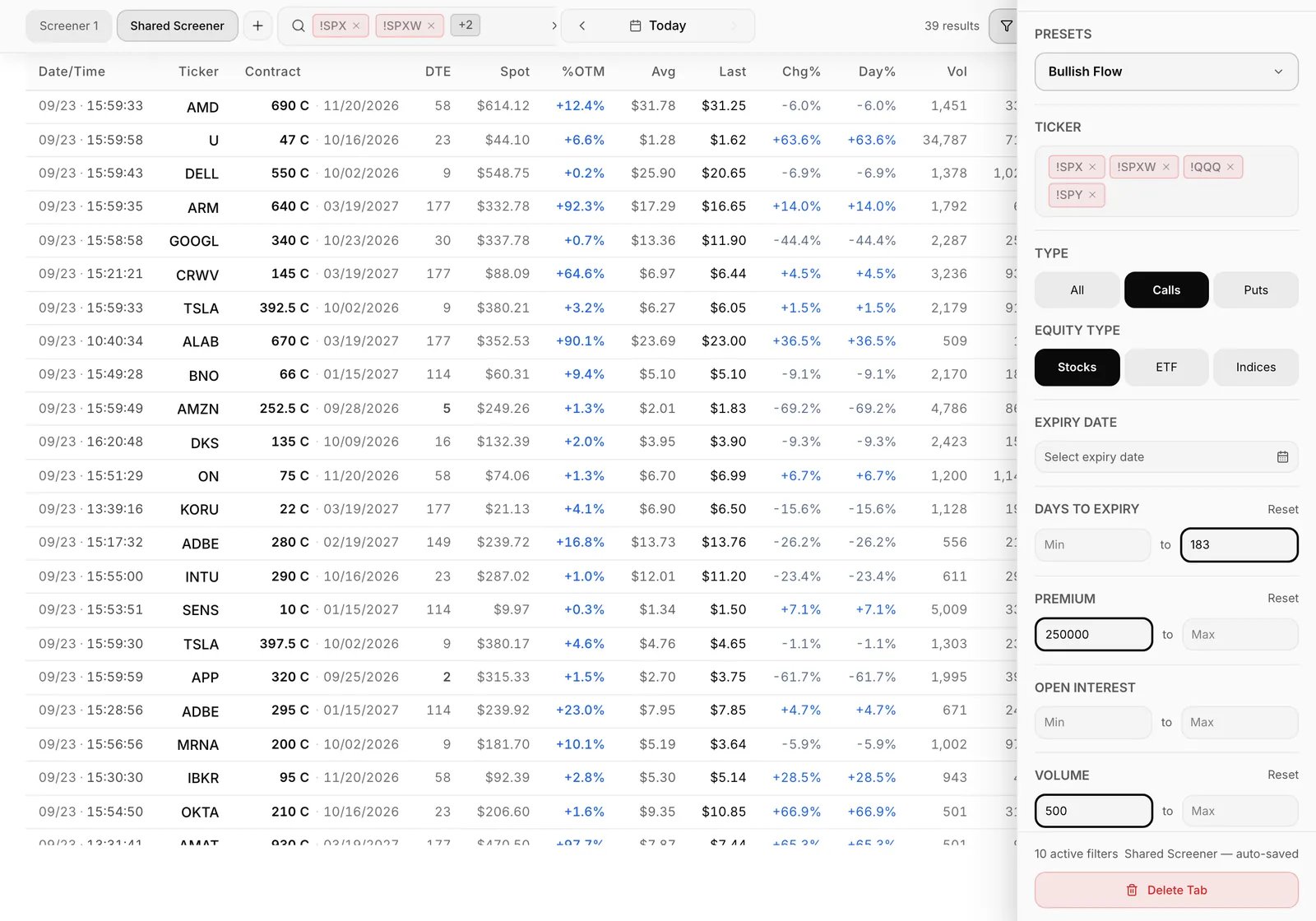
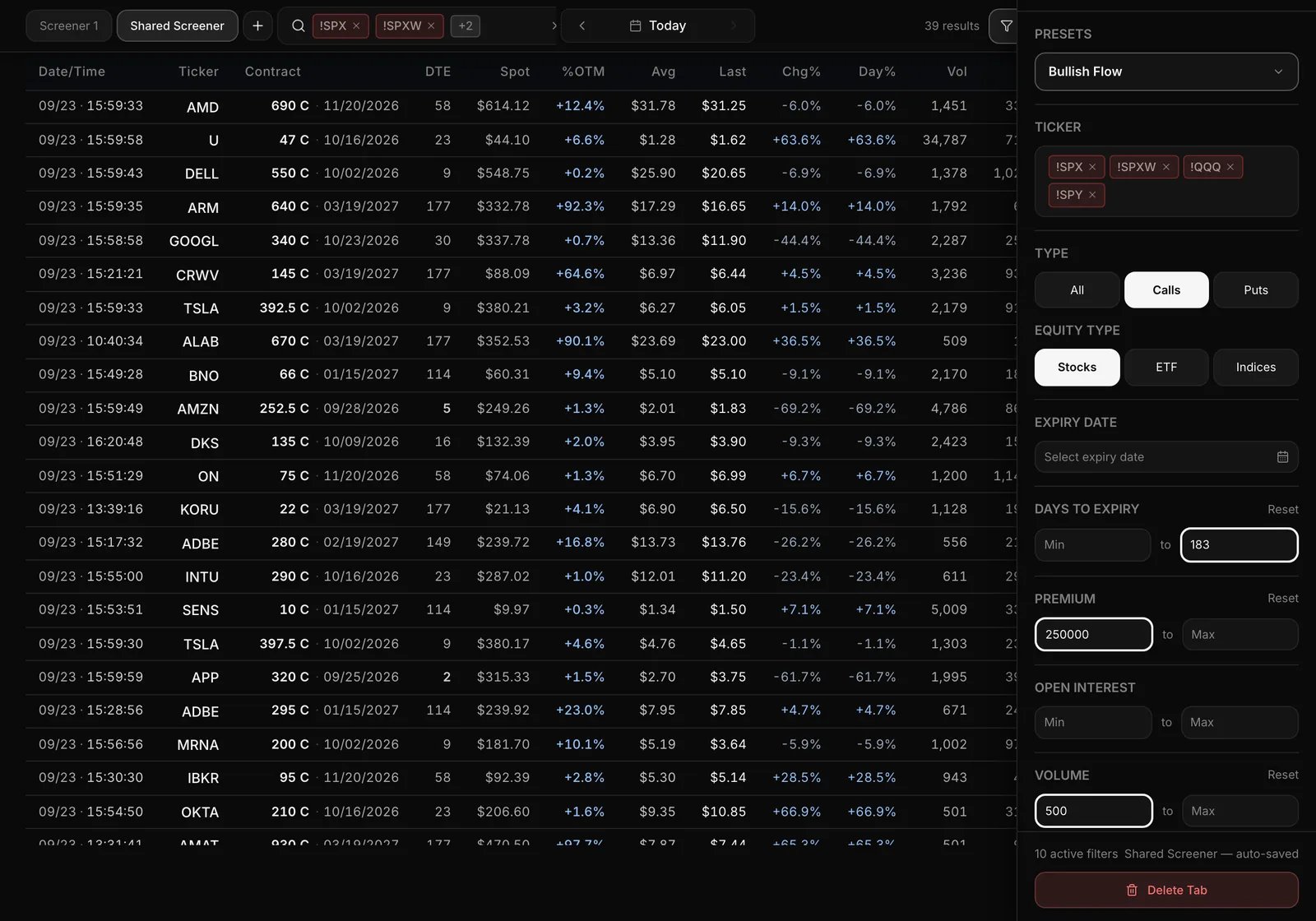
Why it matters: it answers “which contracts are unusually busy today?” rather than “what just printed?”. Every row is one contract, summed over the session. Where: Flowseeker > Flow Scanner.- Pick a preset.
- Bullish Flow and Bearish Flow find calls or puts on stocks that traded mostly at the ask, mostly single-leg. In-the-money strikes are left out.
- Call Sells and Put Sells are the versions that traded mostly at the bid. They also include ETFs, and Put Sells keeps in-the-money strikes.
- Adjust the filters the preset filled in. Once you change one, the preset name shows “(modified)”. Extra filters include Exclude 0DTE, Exclude ITM, OPEX Only, a contract skew range, Sentiment and Chain Sentiment, and OI Growth.
- Read the columns. Most match the Live Feed (Date/Time is the last trade). The ones to learn:
- Avg (volume-weighted price) and Last price, Chg% and Day%.
- ΔOI and ΔOI%: change in open interest since the last session.
- %Tot: this contract’s share of total market volume.
- Bull/Bear and Chain Bull/Bear: the bullish/bearish split for the contract and for the whole ticker (see the Glossary).
- Contract Ratio: how aggressively the contract traded, as its bid/ask mix.
Flow Compass
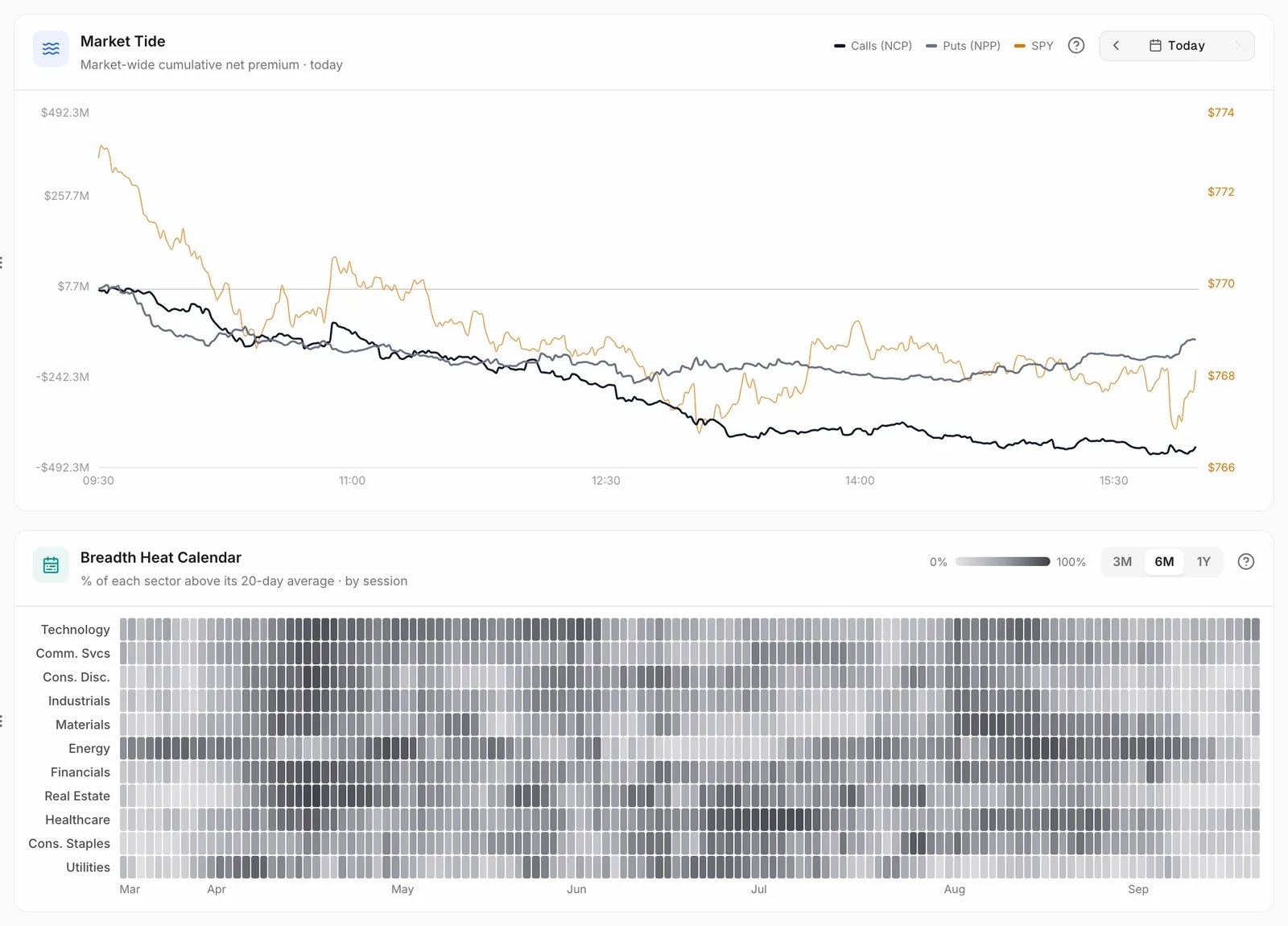
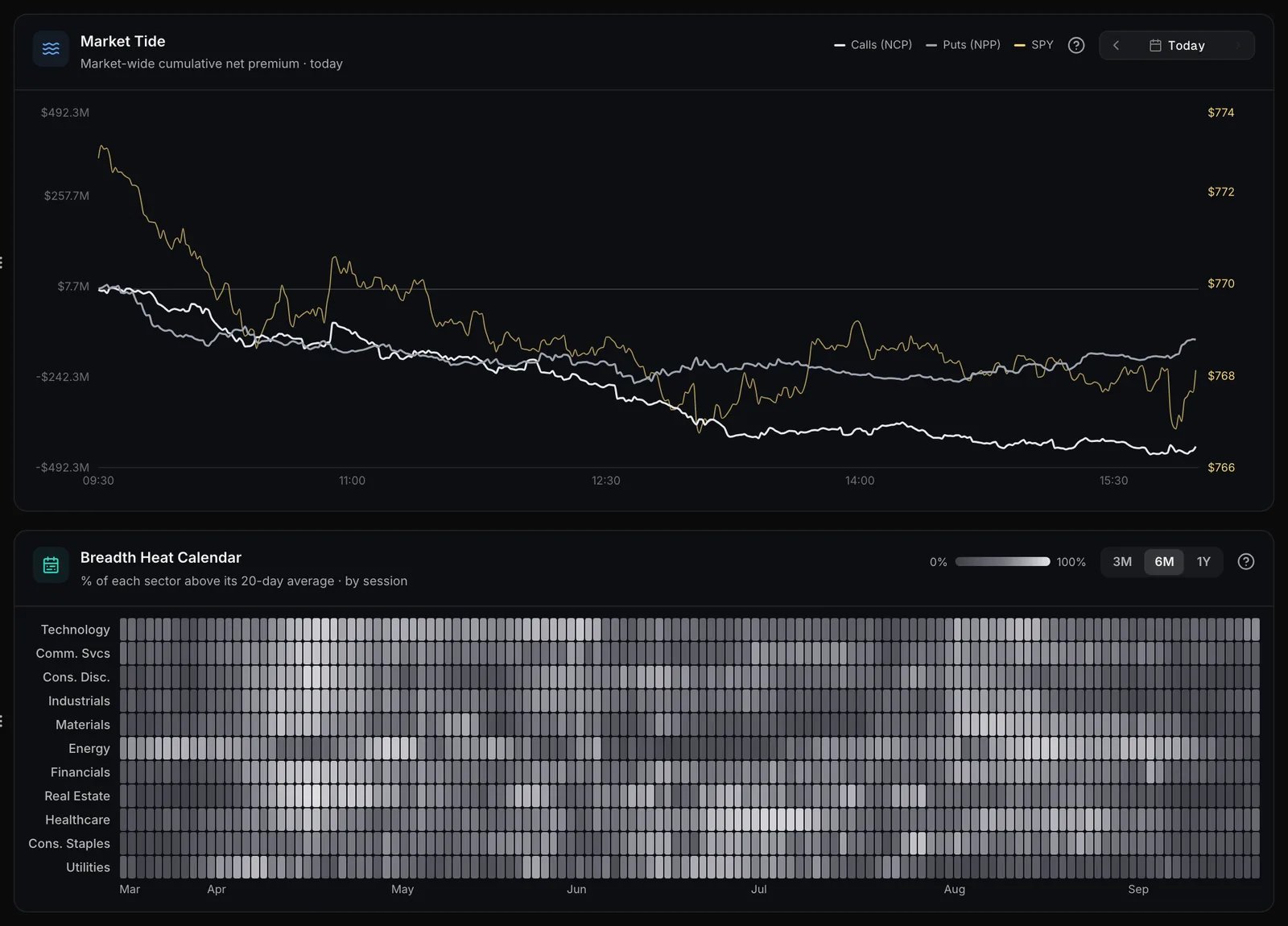
Why it matters: one board takes you from the whole market down to a single contract. You see where money is concentrating without scanning thousands of prints. Where: Flowseeker > Flow Compass.- Start at the market cards (Market Tide, Net Impact, Top Industries) to see the day’s lean.
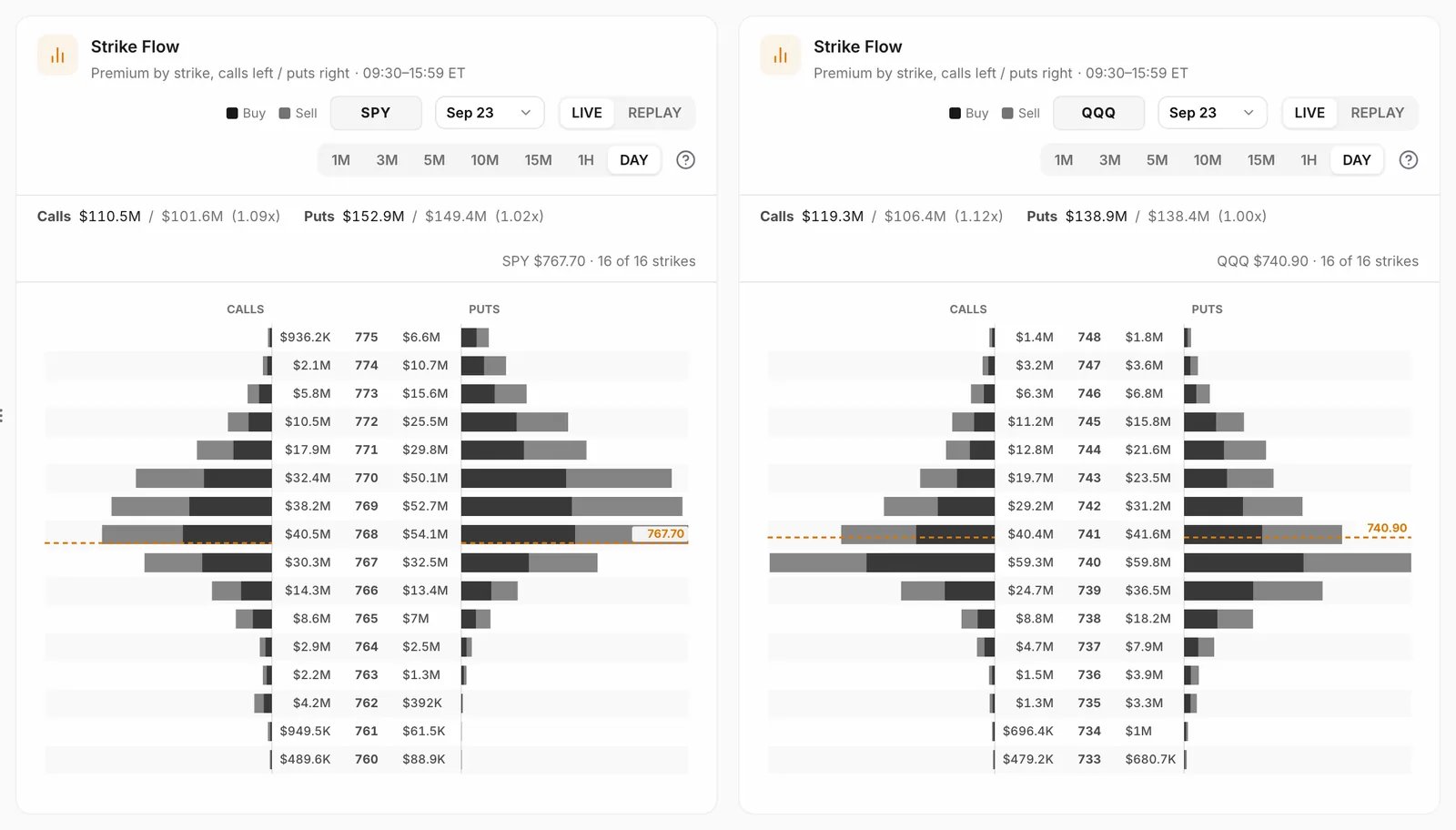
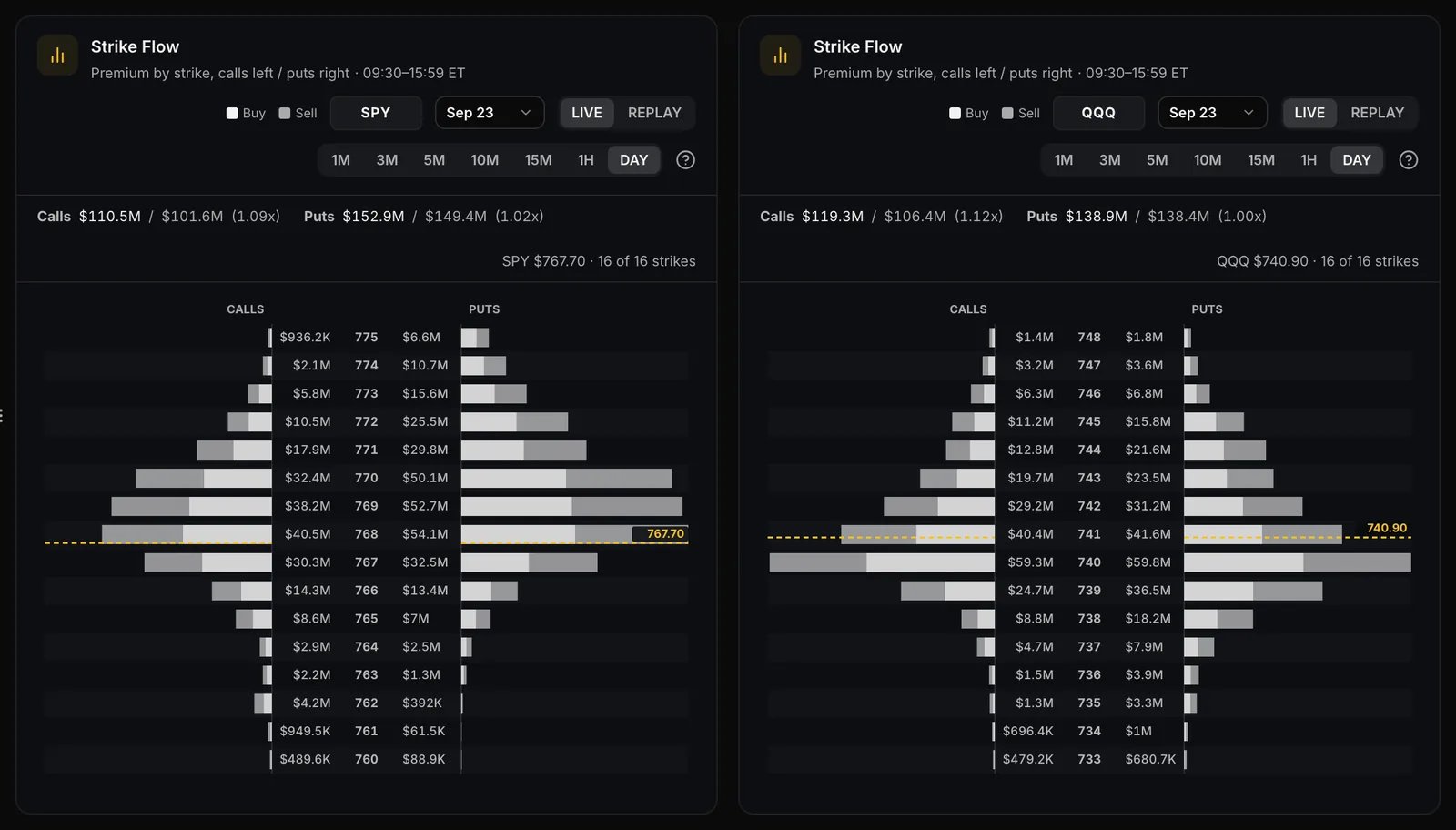
- Move to a ticker (Strike Flow) or to screens that surface contracts (Aggressive Bets, Repetitive Hits, Large Opening Orders).
- Press a card’s info button for its full definition, and hover for exact figures.
- Drag rows and cards into your own order.
Contract Lookup and Contract Drilldown
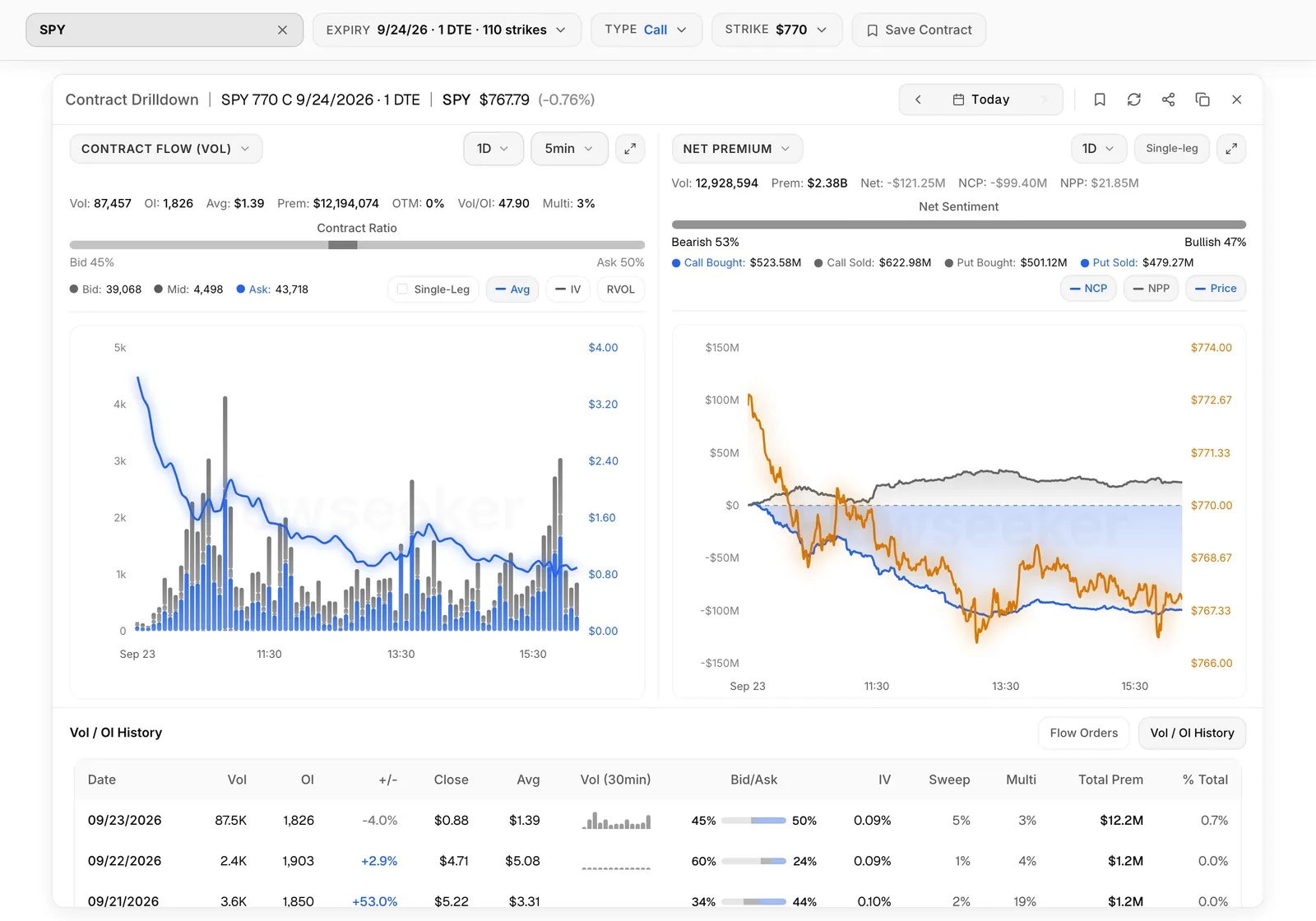
Why it matters: when a name catches your eye, this shows everything traded in it in one place. You can tell one loud print from real, repeated interest. Where: Flowseeker > Contract Lookup, or click any row anywhere for the Contract Drilldown.- Type a ticker (
TSLA) for its overview, or a contract (TSLA 6/20 135 C) to go straight to it. - Read the overview at the top: spot price and daily move, call, put and net premium, the put/call ratio (P/C) and the bullish/bearish mix.
- Below it are five boards: Top Volume, Top Premium, Top Open Interest, Unusual · Vol / OI and Top Sweeps. Top Sweeps ranks contracts by premium traded as sweeps, with Swept %, the share of the contract’s volume that was swept.
- Switch the boards between 1D, 7D and 1M. Volume and premium are summed over the window; open interest and DTE come from the latest session.
- Tick Single-leg only to hide contracts where multi-leg trades drive a large share of premium, so big spreads don’t crowd the boards.
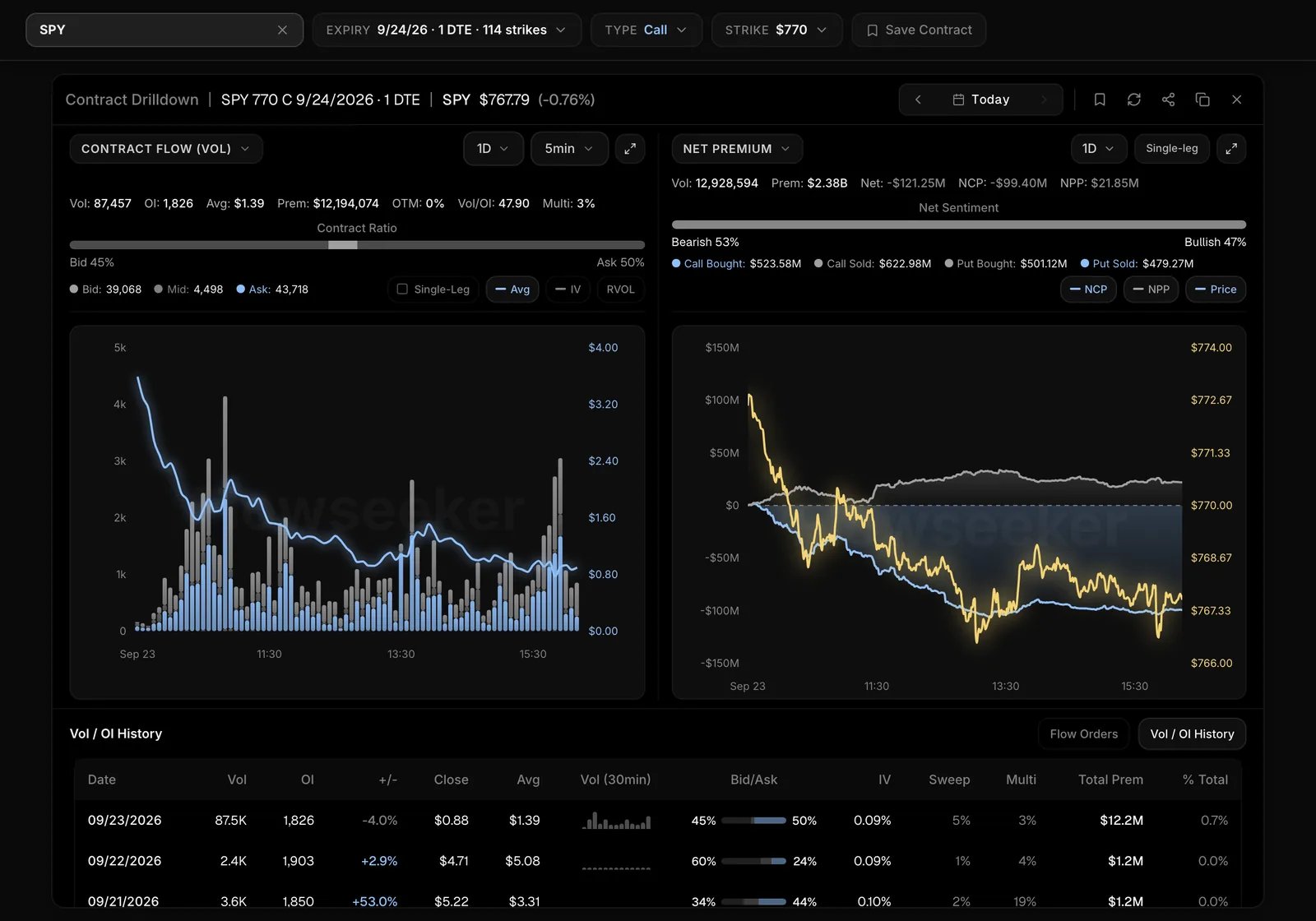
- Open a contract for the Contract Drilldown. It shows:
- flow bars through the day (click a bar to see the prints behind it)
- the bid/mid/ask mix
- net premium, split into calls bought and sold and puts bought and sold
- the Flow Orders table and the contract’s Vol/OI history
- Press the bookmark to save the contract to the Flow Tracker.
Company Events
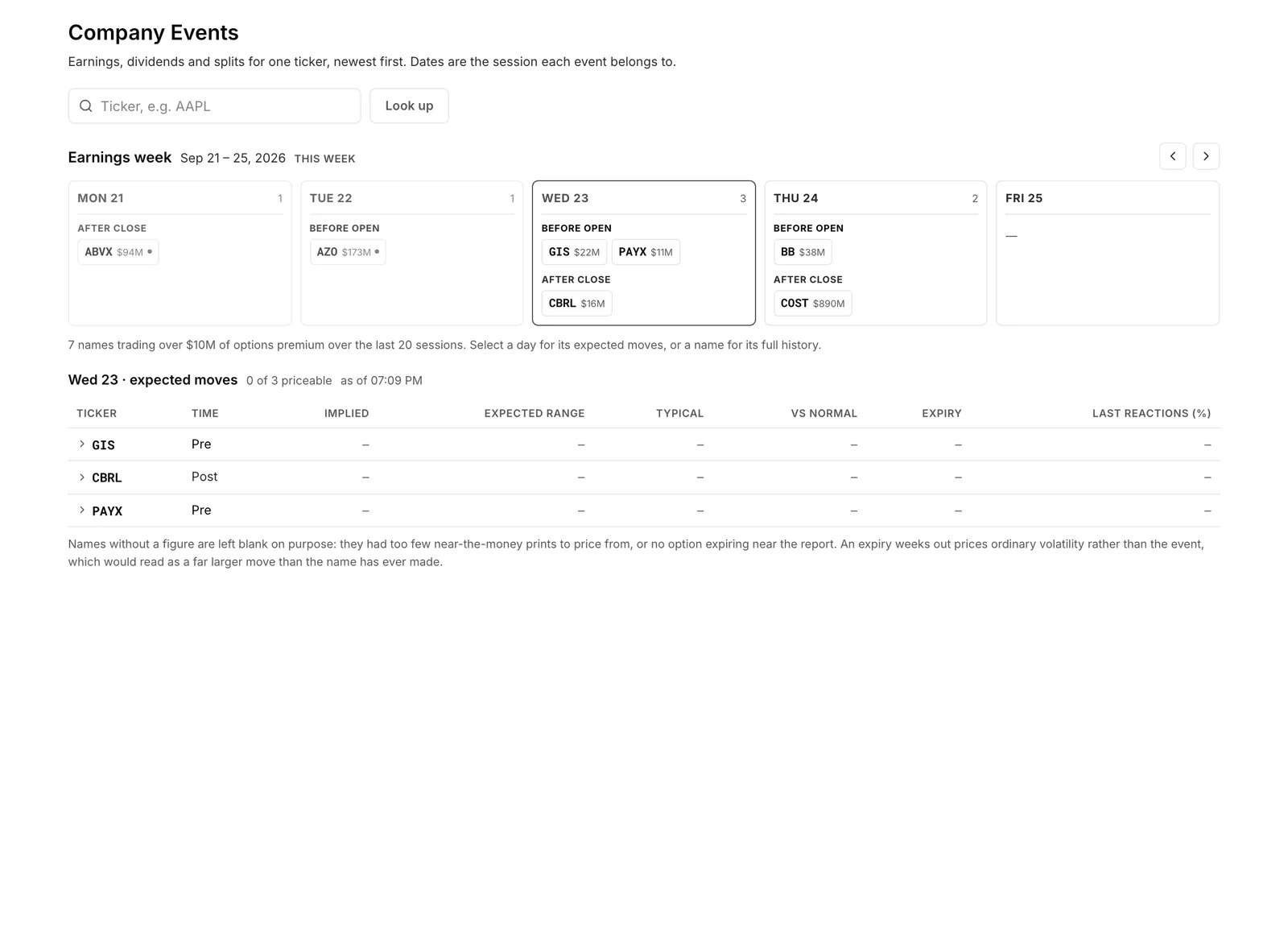
Why it matters: earnings, insider trades and Congress disclosures explain a lot of unusual flow. Check the calendar before you read size as a bet. Where: Flowseeker > Company Events.- With no ticker entered, the page opens on this week’s earnings grid: who reports each day, before or after the bell.
- Pick a day to see its expected moves, or a name to drill into it.
- For one ticker, read earnings, dividends and splits, newest first, plus insider activity (Form 4 filings) and Congress disclosures when there are any. Use the search box in the insider section to find a name, role, action or security.
Flow Tracker
Why it matters: a big print only matters if the trader stays in. The Tracker follows the positions you care about and tells you whether they appear to still be open. Where: Flowseeker > Flow Tracker.- Save prints with Track trade (right-click a Live Feed row). They go to Tracked Flow.
- Save contracts with the drilldown bookmark or from a Compass card. They go to Tracked Contracts, which shows each contract’s current mid and spot.
- In Tracked Flow, compare the saved print to the current mid and spot, its P/L, and its status:
The status is inferred from the tape, not read from anyone’s account.
Flow Alerts
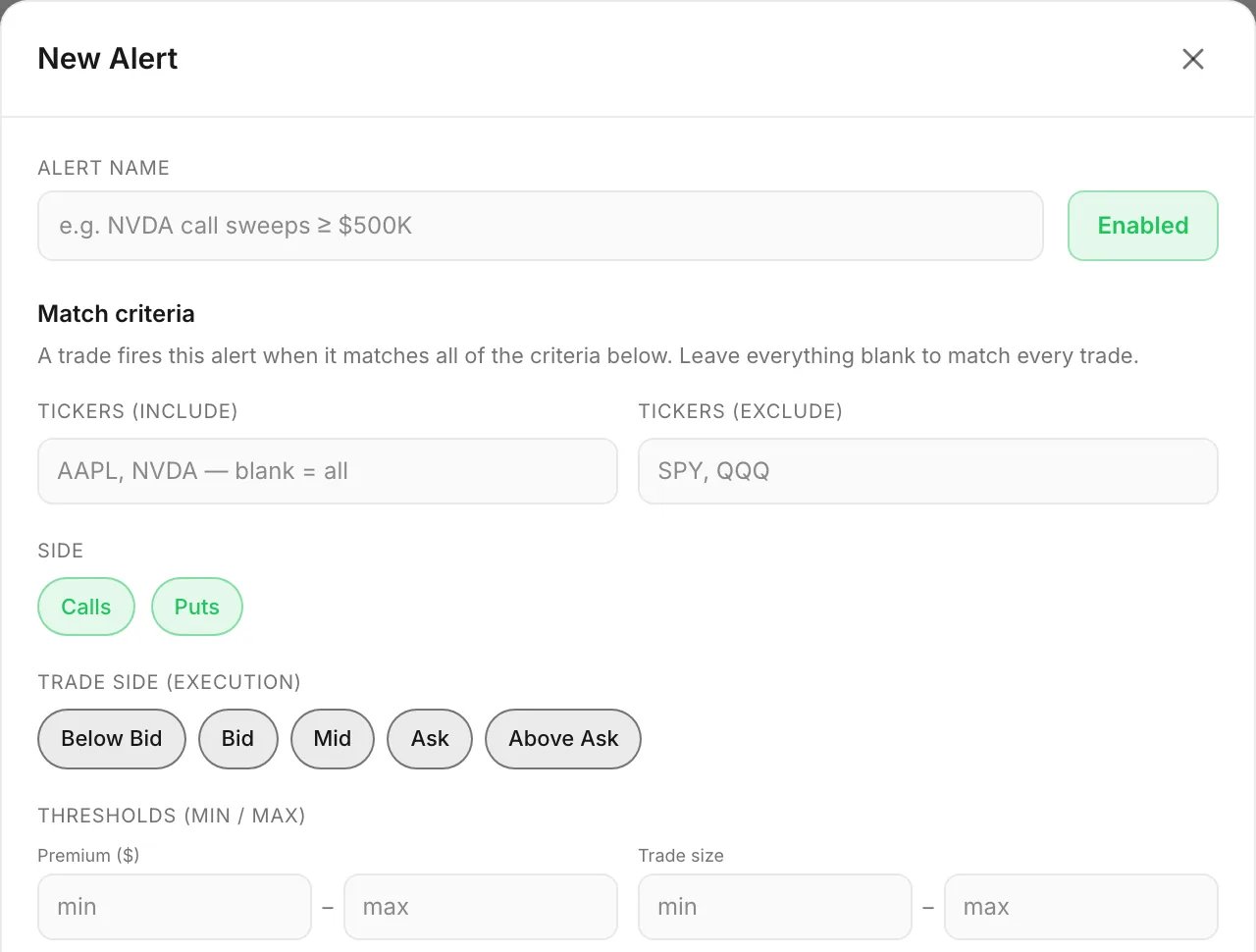
Why it matters: you can’t watch the tape all day. Alerts tell you when a print you care about shows up. Where: Flowseeker > Flow Alerts.- Press New Alert, give it an Alert name and pick the filters you want. The alert fires on each matching print as it arrives.
- Set Rate limit (max alerts / minute) so a burst doesn’t flood you.
- Choose delivery (in-app, push, email, Discord DM) once, in Notifications.
- Find your alerts on the Alerts tab. The History tab shows what fired.
Flow Summary and sharing
Why it matters: if you share flow with a community, this builds an end-of-day digest without copying rows by hand. Where: Live Feed or Flow Scanner, on accounts with Flowseeker sharing.- Right-click a row and choose Add to summary.
- Review the digest in the panel docked at the bottom right. It fetches current figures when you open it or press Refresh. A post sent after the close reports closing numbers.
- Post it to the Discord channels you choose.
Use it with other Skylit tools
Why it matters: flow tells you what is trading. Heatseeker tells you where dealers (the market makers on the other side of options trades) are positioned. Atlas puts both on the price chart. Together they show whether money is backing a level. The gamma terms below come from Heatseeker; its guide explains them.
On Atlas (plans that include charts):
- Open the Add menu and choose Flow for call and put premium bars under the candles.
- Set the Flow pane’s own filters:
- leg count (single, multi) and trade type (sweep, non-sweep)
- moneyness (ITM, ATM, OTM) and trade side (bid, mid, ask)
- DTE, premium and a minimum Flow Score
- Optionally add a sweep call/put ratio line.
- Add Net Premium for a pane with session-cumulative net call and net put premium.
- Add Flow VWAP from the same menu.
- Add Dark Pool to draw lines at the prices of the largest dark-pool prints.
Ask Talon
Why it matters: you can ask about flow in plain English instead of building filters. Where: Talon, on Pro and higher plans (see the Talon guide, “Who can use it”). Talon knows which page you are on. On most Flowseeker pages it sees your active filters and the rows in view: Live Feed, Flow Scanner, Contract Lookup, Company Events, Flow Tracker and Flow Compass. So “what am I looking at?” is answered from your screen.
How it behaves:
/flowis single-leg. It compares today to the last seven sessions, today included. Direction comes from the buy/sell split, never from premium alone.- Dark-pool reads cover the last five sessions and cannot be widened; Talon declines longer windows.
- Contract boards reach back about a month (23 sessions). Volume is summed over the window. Open interest is the last session’s.
- Strike flow uses the expiry you name. If you don’t name one, Talon says which expiry it used. A strike outside the range it looked at is reported as missing, not as quiet.
- Talon quotes what traded. It does not tell you to take a trade.
Good to know
- Side is where a trade filled, not why. Ask-side leans bought and bid-side leans sold, but a hedge, a close or one leg of a spread can print on either side.
- Much of the loudest flow is one leg of something else. Not every spread can be detected. Check multi-leg and cross flags, and open the Contract Drilldown, before you read direction.
- Open interest updates overnight. During the day, Vol/OI and Size > OI compare against yesterday’s close. A print can look like a new position and turn out to be a close. The next morning’s Delta OI settles it.
- Closing trades look bearish. Bid-side size in a contract with large open interest is often someone closing, not a new bearish bet.
- Index puts are usually protection. SPY and QQQ put buying is routine portfolio hedging. Several Compass cards leave indices out for this reason.
- Flow Score is a ranking, not a forecast. It sorts prints by how directional they look. It has not been tested as a predictor of moves.
- Flow Tracker statuses are a best guess. They are inferred from later trades and the next morning’s open interest, not read from anyone’s account.
- Stock-hedge pairings on crosses can be coincidence. A pairing printed in the same second is solid. For pairings further apart, the badge says about one in six is coincidence.
- Crosses Only starts on 2026-08-17. The filter covers trades from that date onward.
- Flow Compass cards describe today; they don’t predict. The Breadth Heat Calendar updates once a day.
- Dark-pool prints have no side. They are not bullish or bearish on their own.
- Double-check some Talon answers. For put/call and max pain, market summaries, unusual contracts, contract boards, company events, insiders and Congress, confirm Talon’s answer on the matching Flowseeker page.
- Confirm earnings dates on Company Events before relying on Talon’s.
- Flowseeker shows what traded. It is not a forecast and not a recommendation.
What’s new
September 2026- Strike Flow bars show bought and sold only. Strike Flow bars now show only bought and sold premium, with mid prints on hover, so each bar counts only trades with a clear side. See Flow Compass.
- 1M window on Contract Lookup. Contract Lookup boards now switch to 1M, so you can see which contracts led volume, premium and open interest over the past month. See Contract Lookup and Contract Drilldown.
- Congress disclosures on Company Events. Company Events now shows a ticker’s trades disclosed by members of Congress, so you can spot that background before reading its flow. See Company Events.
- Insider activity on Company Events. Company Events now lists a ticker’s insider filings (Form 4) with a search box, so you can check insider trades in one place. See Company Events.
- Live Feed stays visible on reconnect. Your Live Feed rows now stay on screen during a brief reconnect. The “Loading trades” overlay appears only when you change filters, sort or feed tab. See Live Feed.
- Strike Flow: 1M and 3M windows and a QQQ card. Strike Flow adds faster 1M and 3M windows for reading strikes near spot, and a second card opens on QQQ beside SPY. See Flow Compass.
- Flow VWAP for everyone on Atlas. You can now add Flow VWAP on Atlas from the Add menu, next to the other flow panes, instead of the settings strip. See Use it with other Skylit tools.
- Flow Summary digest. With Flowseeker sharing, right-click Live Feed or Flow Scanner rows and choose Add to summary to build an end-of-day digest for your Discord channels. See Flow Summary and sharing.
- Net Premium pane on Atlas. Add Net Premium from the Atlas Add menu to see the session’s cumulative net call and net put premium under your candles. See Use it with other Skylit tools.