



Educational material, not financial advice. Nothing here is a recommendation to buy or sell any security. Options involve significant risk and are not suitable for every investor. Past behavior of any reading or setup does not guarantee future results.
Why it matters
Reading an options map takes time, and the question you have is usually simple: where does this stall, and what has to break for it to run? Talon is the AI analyst built into Skylit. You ask in plain English, or with a slash command, from any page. It answers from live Skylit data and the Skylit Academy. That data covers the Heatseeker gamma (GEX) and vanna (VEX) map, options flow, dark pool prints (large trades done off the public exchanges), company events and news.In plain English. The GEX/VEX map shows where options positions sit, strike by strike. Gamma exposure is about how those positions react when price moves. Vanna exposure is about how they react when implied volatility changes. Talon reads the map for you and tells you where the big strikes are.
- It sees your page. The page you are on and the ticker in focus go with every message. On an NVDA chart, “what are the levels?” is a complete question.
- Numbers come from Skylit data, not from memory. Levels, strikes, expiries, dates and prices are meant to come from a live read. Still check any level before you act on it (see Good to know).
- It does not make the call. Talon lays out the structure: the levels it points to, the price that would prove the idea wrong, and the risk-to-reward between them. It will not tell you to buy, hold, exit or how much to size, even if you ask for those fields in a template.
Two things called Talon. This guide covers the Talon chat, the analyst inside the app. A separate product shares the name: the Talon scans that Glitch, Skylit’s founder, posts on his Substack.
Where to find it
Talon is the same everywhere: one conversation, one history, one set of settings. Move between these places mid-thought and nothing is lost.
On desktop the Aegis button sits bottom right, above the Support button. On a phone it sits on the right edge, around the middle. You can drag it somewhere else.
Which plans include Talon
The first time you open Talon, you accept a short disclaimer. It says Talon is educational and not financial advice, it can be wrong, and every trading decision is yours. It shows again whenever that text changes. If you decline, Talon closes and asks again next time.
Read it in 30 seconds
- Open it. Press
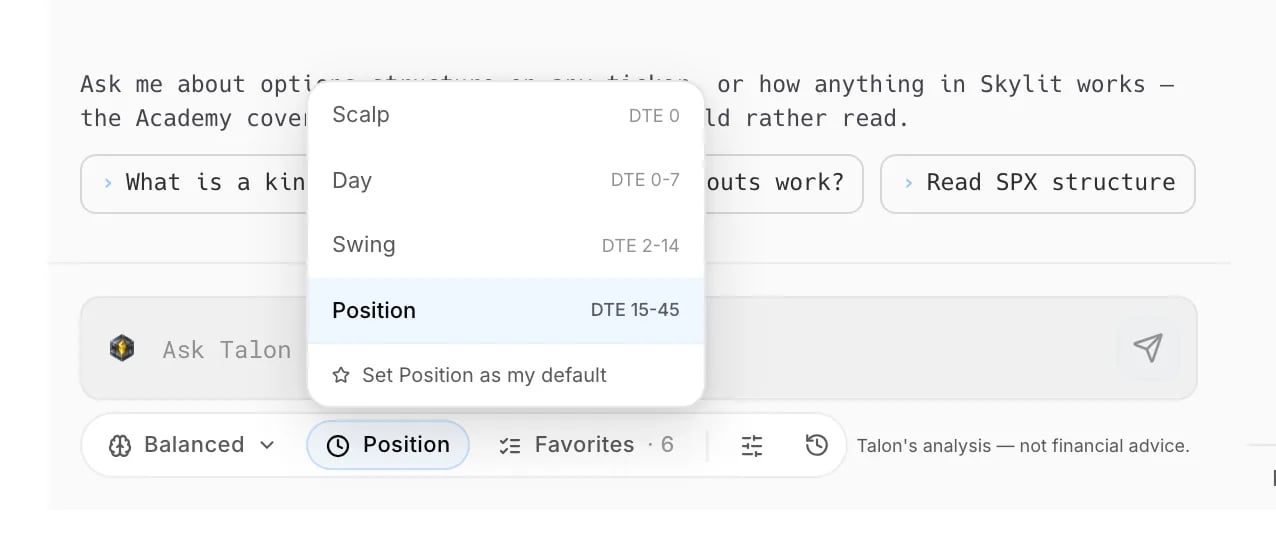
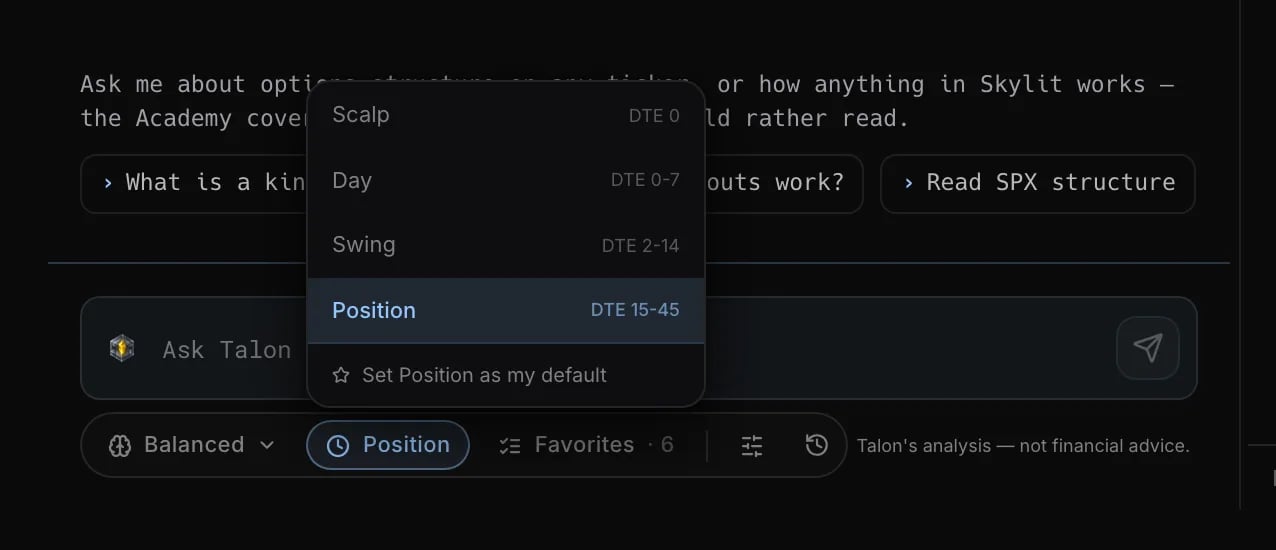
Cmd+\(Mac) orCtrl+\(Windows), or tap the round Aegis button and pick Talon. - Set the timeframe. Pick Scalp, Day, Swing or Position under the composer. It decides which expirations Talon reads, so a scalp read and a position read of the same ticker can rightly disagree.
- Ask a pointed question. “Where does this turn?” or “what has to break for this to run?” gets more than “give me the levels”.
- Name the expiry on any strike question. Ask whether the trade was bought or sold, not how big it was: “Is 600 being bought or sold for the Oct 17 expiry?”
- Push back. If a number looks wrong, say so. Talon fetches the data again and shows its source instead of defending its last answer.
In plain English. Options that expire this week and options that expire in three months are different books. A scalp read looks at the near ones, a position read at the far ones. Same stock, two maps, much like tomorrow’s forecast and the season outlook can point different ways.
How to use it
Set the timeframe and effort
Why: the same ticker has a different map for a 0DTE scalp (options that expire today) than for a three-month hold. Matching Talon to your holding period keeps the read relevant. Where: the row under the composer.- Tap the timeframe control and pick Scalp, Day, Swing or Position. The menu shows the days-to-expiry range each one reads. You can set one as your default; it is marked in the menu.
- Tap the effort control and pick Fast, Balanced or Deep.
- If you scan watchlists, tap the watchlist chip and pick the Atlas list a plain
/watchlistshould use.
Choose how answers look
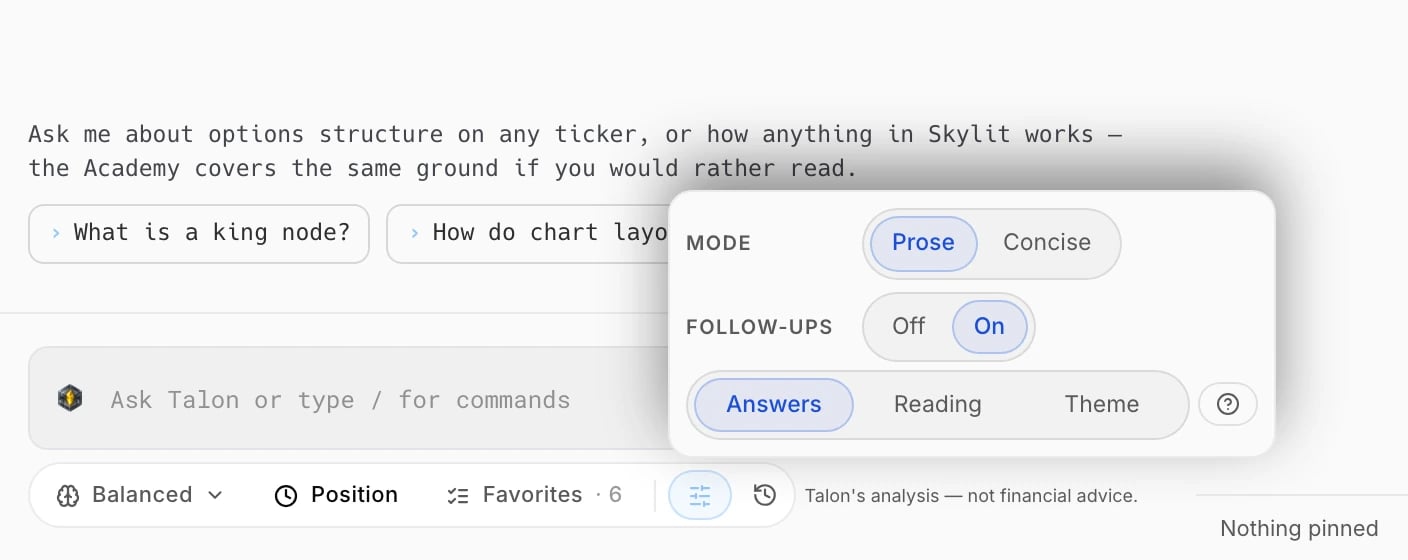
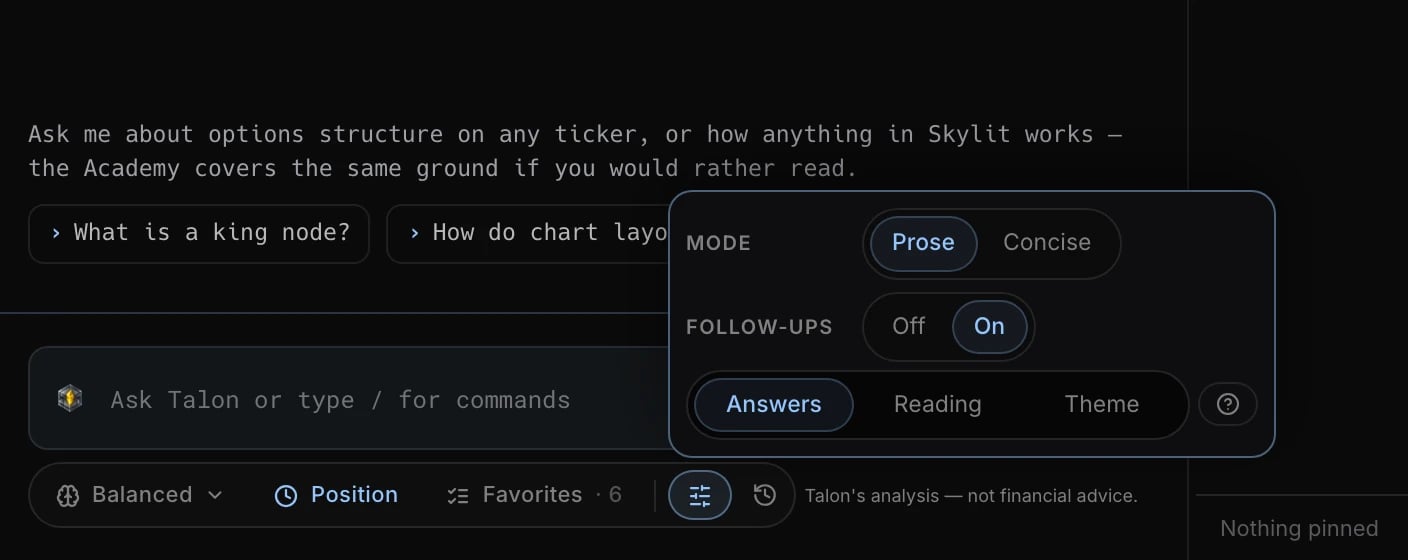
Why: sometimes you want the reasoning, sometimes you want to compare ten names at a glance. Where: the settings button in the composer row, Answers tab.- Under Mode, pick Prose (the default) to get the read in a few tight sentences, or Concise for the same read in short field blocks. Concise is better for comparing names and worse when you want the reasoning.
/conciseswitches it from the composer. - Under Follow-ups, turn the three suggested next questions under each answer on or off. They are on by default.
/suggestswitches them.
Slash commands
Why: a command gets you exactly one read, with no guessing about what you meant. Where: type/ in the composer to open the menu.
- Type
/and start typing the command name. The closest matches come first. - Pick the command, then add a ticker or scope if it takes one.
- Press Enter. Picking the last option in a command runs it straight away.
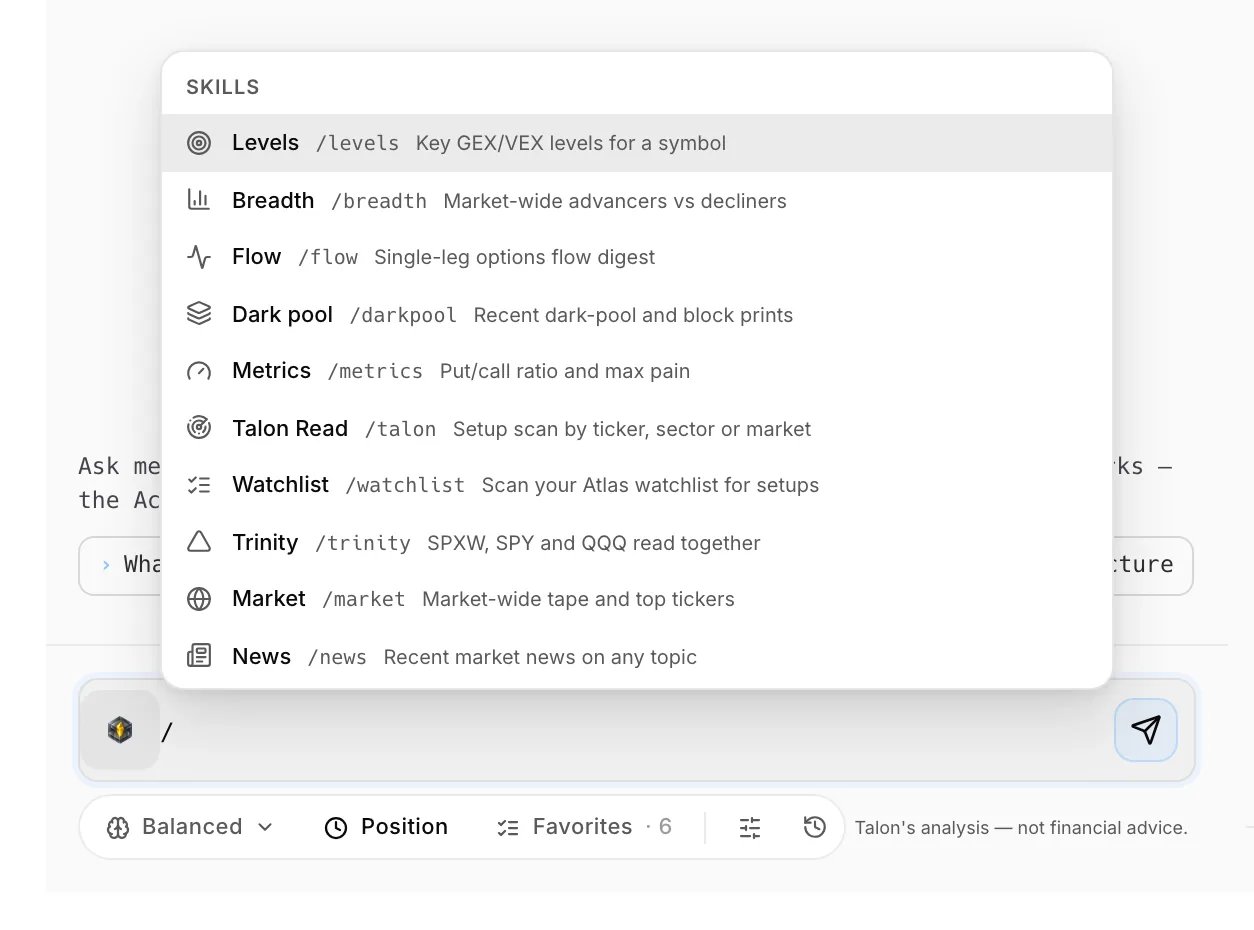
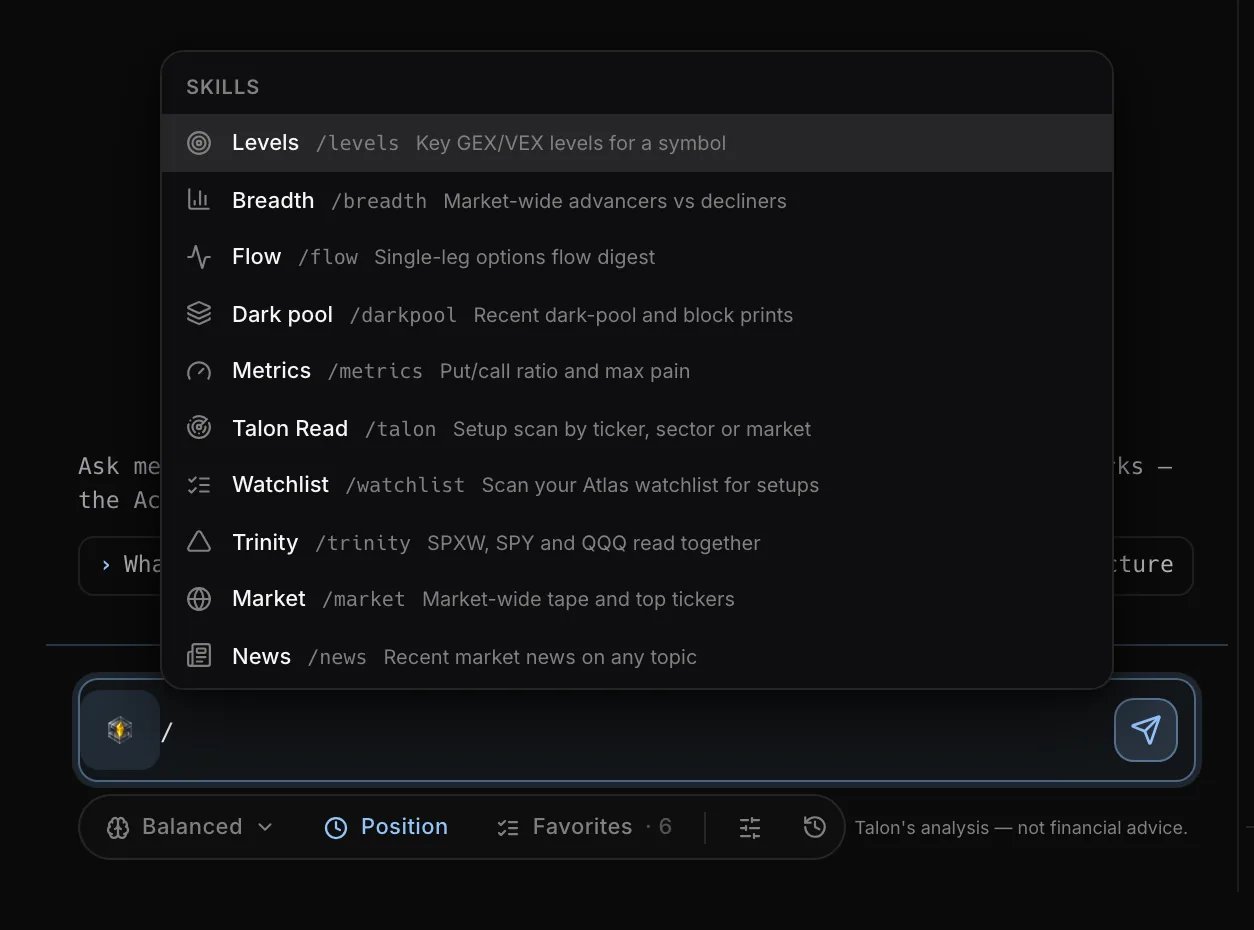
/flow NVDA. /watchlist, /trinity and /talon TICKER always run the same fixed read, so type those when you want exactly that read.
What you can scan with
/talon:
- Sectors: semiconductors (“semis” works), energy, financials, healthcare, consumer, industrials, cybersecurity, crypto.
- Themes: mag7, ai, china, memory, ev, datacenters, neoclouds, hyperscalers, defense, nuclear, quantum, robotics, space.
market: the index, ETF and volatility group.universe: the whole market. You can narrow it to stocks or ETFs.
Ask about the page you are on
Why: you do not have to retype the ticker or describe the chart. Talon already knows what you are looking at. Where: open Talon on any of the pages below. Its first line says what it can see.- Open the page, then open Talon.
- Ask one of the questions in the Try column, or your own.
- To ask about another ticker, just name it. A ticker you name always wins over the page.
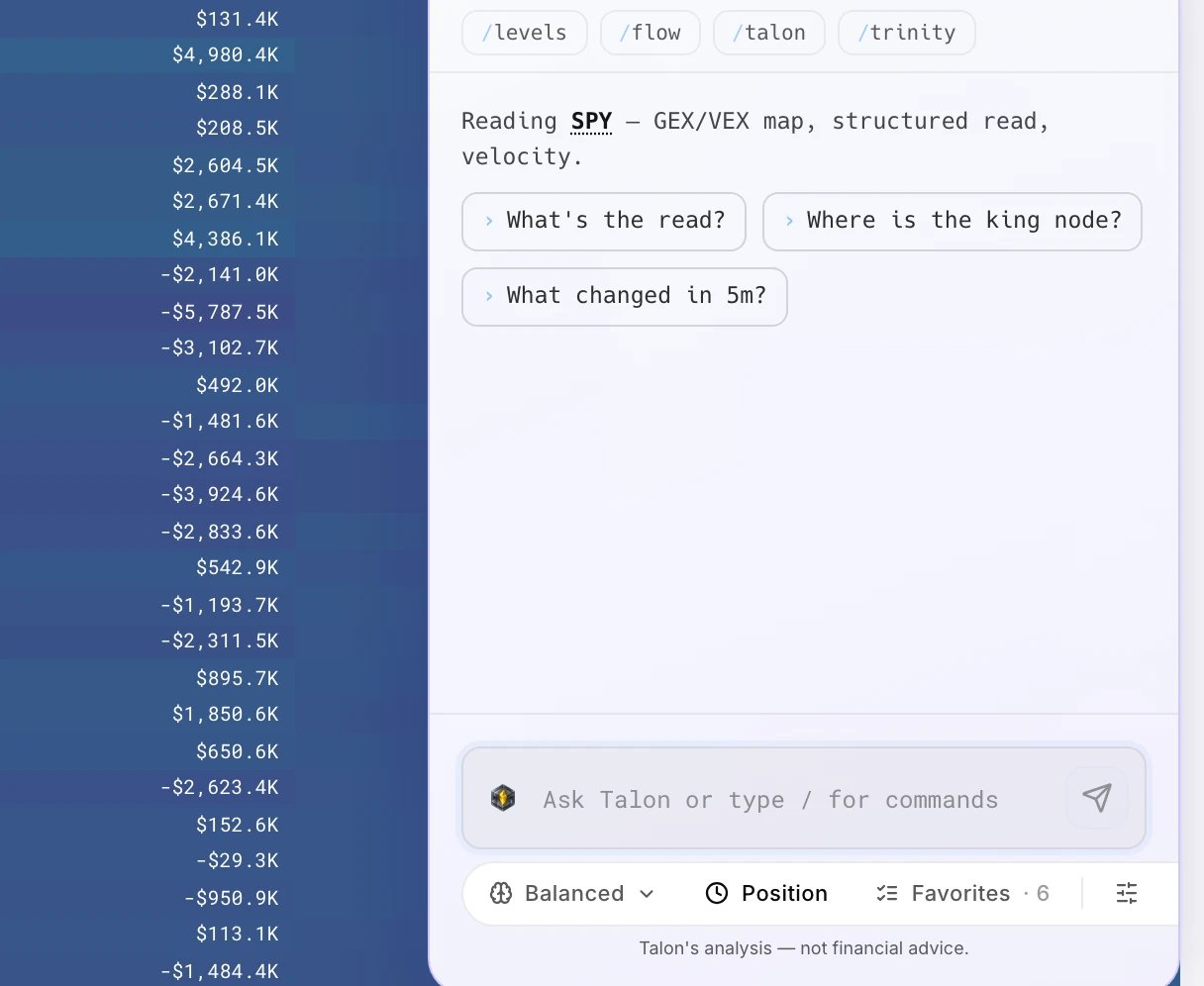
On the Heatseeker and Trinity map pages Talon uses a lighter set of tools so it answers faster. Raw prints, the rotation scan, and chart patterns and indicators are not available there. Ask for those from Atlas or another page.
Tap a ticker, read the cards
Why: every ticker in an answer is a shortcut, and cards put a whole structure read on one screen. Where: inside any Talon answer.- Tap a ticker in an answer to open its menu. From there you can:
- ask Talon about it: Talon Read, Levels, Flow, Dark pool, Metrics, Earnings, or Mention in composer
- open it in Heatmap, Atlas or Trinity
- favorite it, or add it to your selected watchlist
- Read the card. A trade map, a scan report or a Trinity ladder shows as a card in place of text. Its numbers come from the same data as the answer. Scan cards line up the structural invalidation, the entry reference and the levels the structure points to. Each level shows its expiry and risk-to-reward. Each name shows its price and day change as of the moment the result loaded.
- Change the view. On scan results and trade maps, use Detail (Compact, Normal or Detailed) and Layout (Fit, Scrollable or Cards). These only change how the result looks; nothing is read again.
In plain English. A trade map is a route plan drawn from the options structure. It has a reference price, a few places price could travel to, and the price that would prove the idea wrong (the structural invalidation). Risk-to-reward weighs those levels against that invalidation. It describes the structure; it does not say whether to take the trip.
History and feedback
Why: pick up yesterday’s thread without starting over, and tell Skylit when an answer misses. Where: History in the Talon toolbar; the thumbs under each answer.- Open History to search, pin, rename or delete conversations.
- Tap Continue on a past thread to pick it up with its context. Old threads show how old they are. Continue one to keep the conversation, but ask again when you need fresh numbers.
- Rate any answer with a thumbs up or down. A thumbs-down offers reasons (Inaccurate, Wrong levels, Too slow, Not what I asked, Other) and goes straight to the people who tune Talon.
The full page (/talon)
Why: a bigger workspace, with a live chart of whatever you are discussing next to the conversation.
Where: TALON in the sidebar, or /talon. Pro plan.
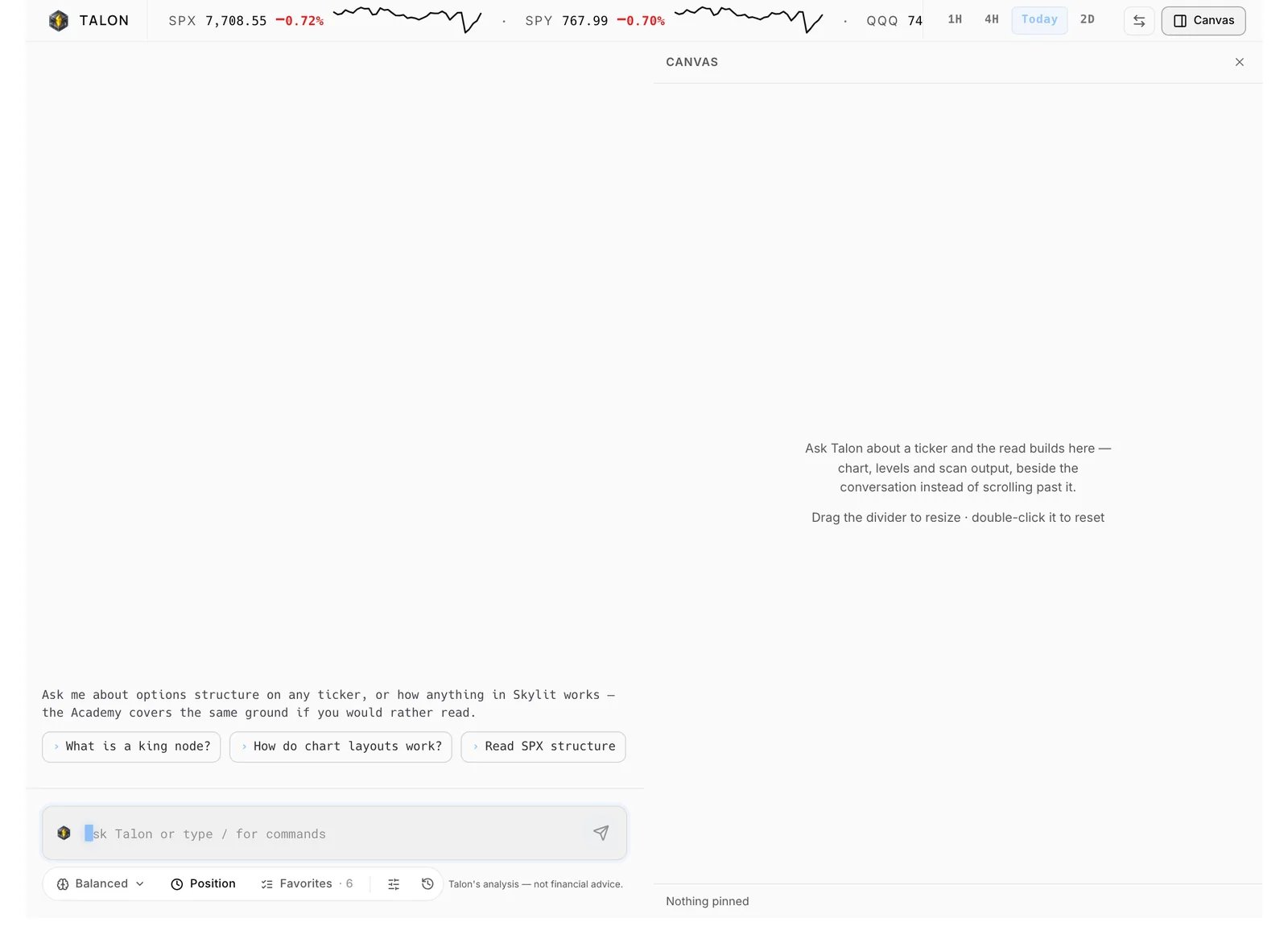
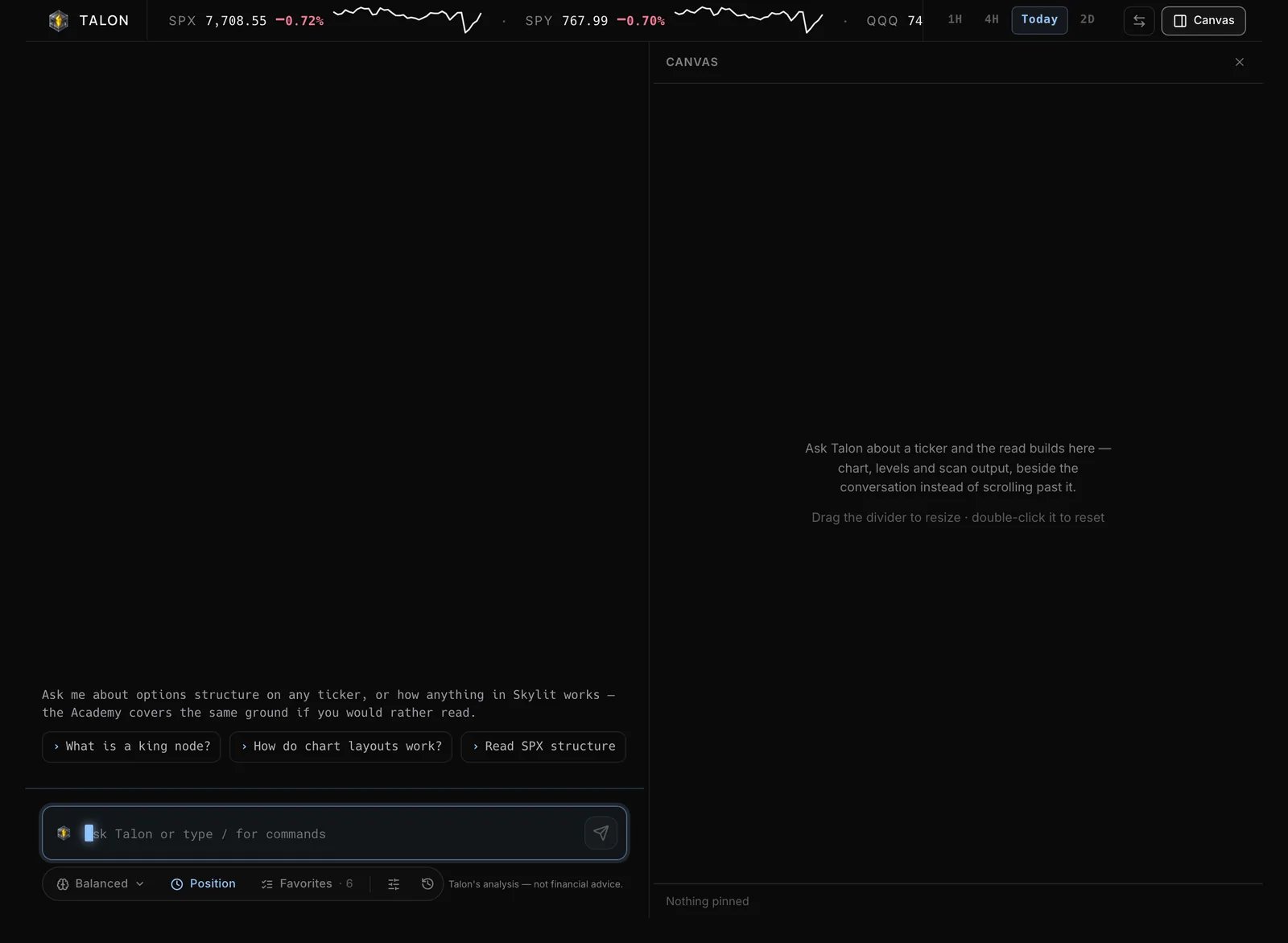
- Read the tape across the top: SPX, SPY, QQQ and CVIX (the VX-futures continuous index, not spot VIX). Switch the sparklines between 1H, 4H, Today and 2D.
- Ask about a ticker. On desktop, the canvas on the right shows a live chart of that symbol, plus the trade map, scan report, Trinity ladder or market overview. It holds up to six cards. A new ticker clears the board, and a seventh card pushes out the oldest. A question that names no ticker clears nothing.
- Use the chart. It follows your Atlas chart preferences but never changes them. It is always live, even in an old conversation; the caption then reads “live · from a conversation” and how long ago. Tap Open in Atlas to take the symbol to your charts. When an answer has levels that can be drawn accurately, a chip offers to mark them on the chart.
- Arrange the panes. The Canvas button in the header opens and closes the canvas, and the swap button beside it flips the panes. Drag the divider to resize; double-click it to reset. A narrow window shows one pane.
Common routines
These are habits for using the tool, not tested trading signals. Pick the one closest to how you trade.Index scalps (0DTE SPX, SPY, QQQ)
Set Scalp. Open with/trinity to see whether the three indexes agree, then /levels SPXW. Before leaning on a level, ask “is that level still fresh, or tested today?”. That answer is sometimes unavailable. The Academy teaches that levels weaken with each tap; treat that as a rule of thumb, not a tested signal. For flow at a wall (a big strike on the map), name the expiry and ask whether it was bought or sold.
Day trades
Set Day. From a Heatseeker or Atlas page, ask “what’s the read?” then “where does this turn?”. Follow/flow NVDA with “is that unusual for this name?” to see volume against its average and open interest, not just raw premium.
Swings
Set Swing. Run/watchlist or /talon sector semis to see which names have structure, then /talon NVDA for the trade map. Round it out with “how does the sector look behind this name?”, “when do they report?” and, for the invalidation, “what would change your mind?”.
Positions and single-name research
Set Position. Ask what the company does, who its peers are, what trades with it, whether insiders have been buying, and whether anyone in Congress traded it. Research answers are written in words and cite their sources. Take your numbers from the reads, not from research answers.Use it with other Skylit tools
Ask Talon
Talon answers questions about itself and the rest of Skylit from the published Academy and docs, and cites them. If the docs do not cover something, it says so instead of guessing.Good to know
- Check a level before you act on it. Talon takes its numbers from live Skylit data, but not every kind of answer is checked against that data yet. Compare any level with the Heatseeker map or the Atlas chart it came from.
- Talon describes; it does not decide. It will not give buy, hold, exit, size or pick answers. If an answer ever reads like a call, report it with a thumbs-down.
- An empty scan is a real answer. Scans are strict, so “nothing qualifies” means nothing met the bar. The risk-to-reward on a trade map is a reference from the structure, not a win rate.
- Market-wide scans tell you how much they read. Look at the Scanned line instead of assuming the scan saw every name.
- Flow totals are single-leg only. They will not match the all-legs figures on the contract chart. Read direction from the buy/sell split, never from how big the premium is.
- Dark pool, earnings and news have fixed limits. Dark pool covers the last five sessions. Earnings gives dates, not whether the report is before or after the bell. News covers about the last week, and each headline names its publisher.
- Research answers are words, not numbers to trade. They cite their sources. How to read Skylit data comes only from Skylit’s own docs, never the open web.
- Timeframe changes the answer. Talon’s king node comes from the expirations your timeframe selects, so it can differ from a map showing other expirations.
- Limits. If you hit Talon’s usage limit you will see “You’ve reached Talon’s usage limit for now. Try again a little later.” If Talon is off for your account you will see “Talon isn’t available on your account. Contact support if you think this is a mistake.”
What’s new
September 2026- Queue a question while Talon answers. You can send your next question while Talon is still answering. Up to three wait in a queue, so you never wait to type. See Choose how answers look.
- Steadier Talon on phones. On a phone, the composer and slash menu stay above the keyboard, and the conversation no longer jumps while you scroll. See How to use it.
- Detail and Layout on scan results. Scan results and trade maps have separate Detail and Layout controls, so you can make a result denser or roomier without a new read. See Tap a ticker, read the cards.
- Clearer scan cards. Scan cards show the invalidation, entry reference and the levels the structure points to on one line, with each level’s expiry and risk-to-reward, so the structure reads at a glance. See Tap a ticker, read the cards.
- Market breadth with /breadth. /breadth shows how many S&P 500 and Nasdaq 100 names are advancing versus declining, so you can see whether a move is broad or narrow. See Slash commands.
- Live chart on the full page. The /talon canvas shows a live chart of the symbol you are discussing, in your Atlas chart style, so price sits beside the answer. See The full page (
/talon). - Insider and Congress filings. You can ask whether insiders have traded a stock, or whether members of Congress traded it, including on Company events. See Ask about the page you are on.
- Flow beyond today’s session. You can ask about a ticker’s busiest contracts over the past week or month, with the strikes carrying the activity and which side the trades were on. See Slash commands.
- Talon’s levels on the canvas chart. Talon can mark its answer’s levels on the canvas chart, from the same gamma or vanna map it read, so the picture matches the words. See The full page (
/talon). - /watchlist reads your whole list. /watchlist now reads every name on your list, not just the first 30, and ranks the names whose structure qualifies, so nothing gets skipped. See Slash commands.
- Quicker slash-command menu. The / menu puts the closest matches first and shows more rows, and picking a command’s last option runs it without an extra keystroke. See Slash commands.
- Market tape and Swap on the full page. The /talon page shows SPX, SPY, QQQ and CVIX with switchable sparklines across the top, and Swap flips the chat and canvas panes. See The full page (
/talon). - Whole-market scans. /talon universe now scans the whole market, and its Scanned line shows how many names it covered. You can narrow it to stocks or ETFs. See Slash commands.
- More sectors and themes to scan. You can now scan cybersecurity as a sector, plus seven new themes: neoclouds, hyperscalers, defense, nuclear, quantum, robotics and space. See Slash commands.
- Earnings dates nearby. When a single name reports within seven days of the data’s date, Talon adds a line saying so, so a report does not surprise you. See Tap a ticker, read the cards.